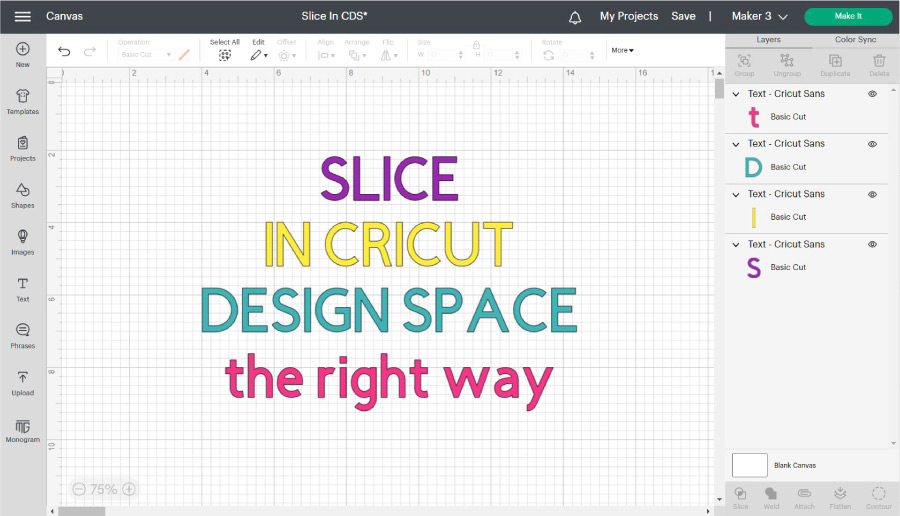
In today’s tutorial, you’ll learn everything there’s to know about the “Slice” tool in Cricut Design Space. You’ll know what this tool is for and all the possibilities you have with it when making a project. What is “Slice” in Cricut Design Space? “Slice” is a Cricut Design Space tool that allows you to split or crop out two overlapping images or layers to create a new design. Mastering “Slice” is one of the main things you should learn on your Cricut journey because you can take a design from boring to extraordinary in just one click. Seriously… If you conquer the “Slice” tool, you’ll be closer to mastering your Cricut machine. If you are a beginner still figuring out Cricut’s software, I recommend this comprehensive and easy Design Space tutorial. In a nutshell, these are the topics I will be covering in this tutorial:
Where to find the slice tool.Slice overviewHow to slice multiple imagesHow to crop images using the Slice toolUsing Slice with textSlice and the offset toolSlice to make new shapesHow to slice with grouped images or multilayer fontsSlice vector linesSlice vs. other Cricut Design Space toolsWeldAttachFlattenContourWhat is the “Slice & Set Method”Examples of when to use Slice.
Tip: This tutorial builds upon the skills I teach in every step. If you’re just starting with your machine, I suggest you read and follow each step. Ready to become a pro at slicing?
Where to find the Slice tool in Cricut Design Space
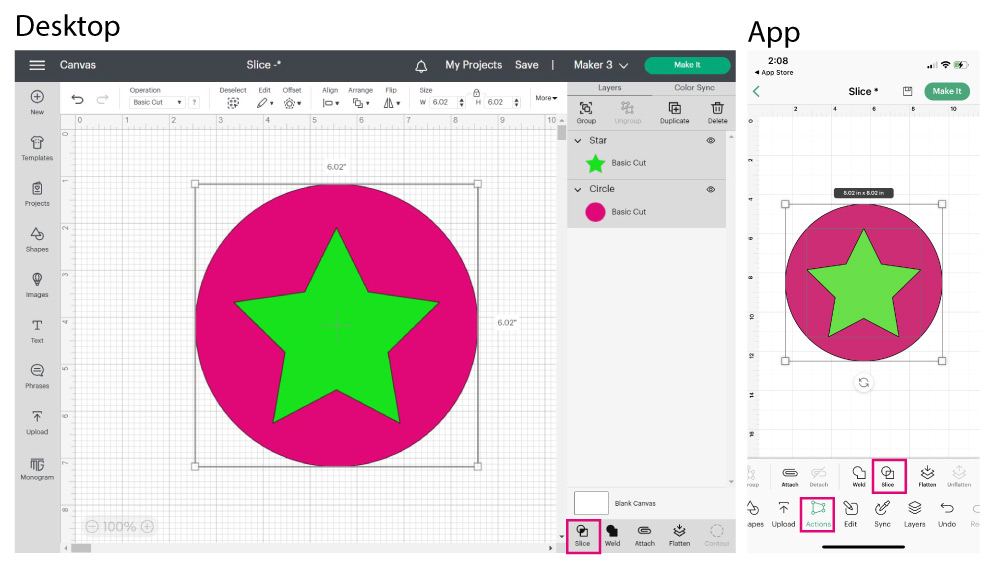
The “Slice” tool is available on desktop computers and the Cricut app. On desktop computers, “Slice” is at the bottom of the layers panel. And on the app, Slice is inside the “Actions” menu at the bottom of the screen. If you aren’t familiar with Cricut’s app, I have a handy tutorial that will teach you how to navigate the app and what every icon is for. Unless I mention, you can use Cricut’s app for everything I am about to teach you. However, all screenshots will be from a desktop computer.
How to Use Slice – Overview and things to keep in mind
You know what Slice is and where to locate it; now let’s see how to activate and use it.
Rule #1: Slice will only be activated if two layers are selected on the canvas.Rule #2: The images must be overlapping. If you slice two images that aren’t overlapping, nothing will happen.Rule #3: Slice will be greyed out if you select only one or more than three layers at the same time.Rule #4: You can’t Slice flattened layers.
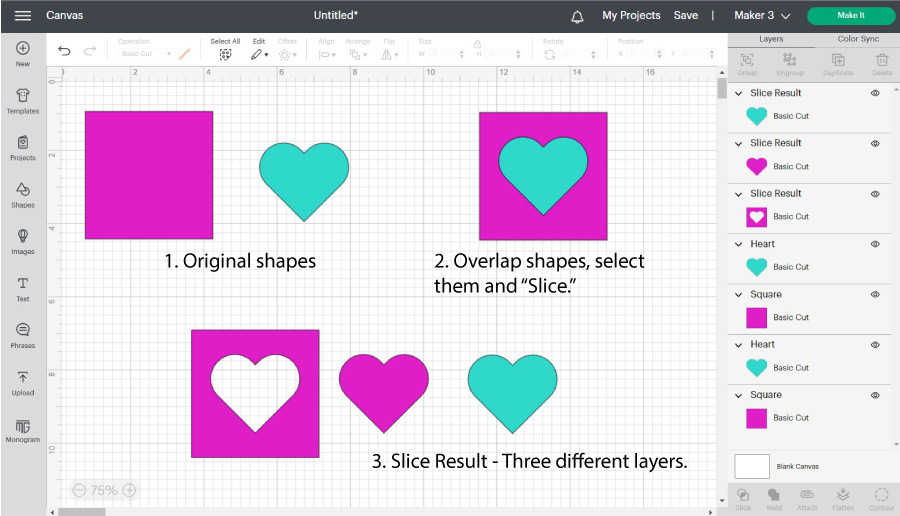
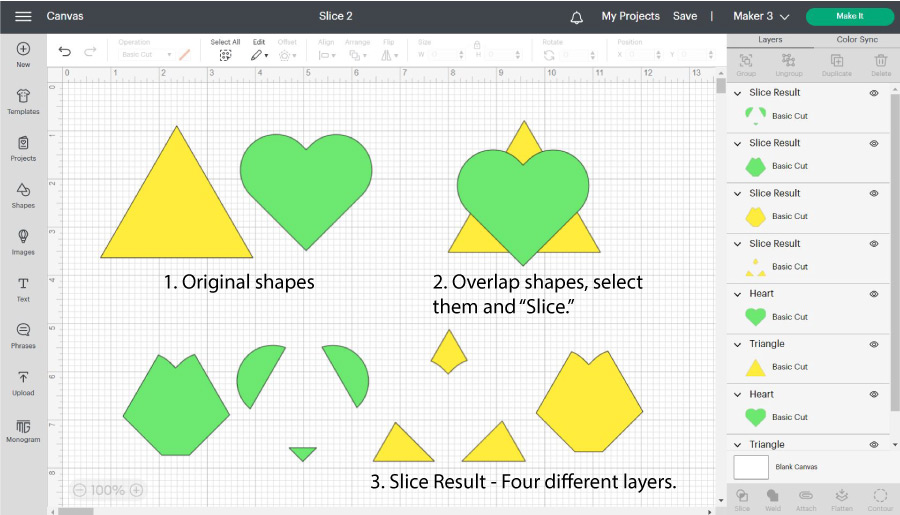
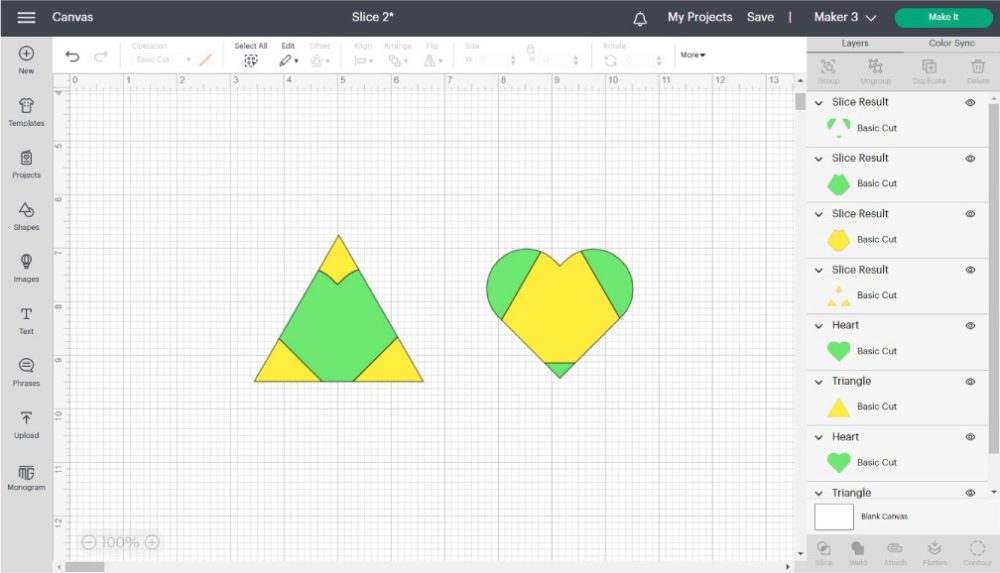
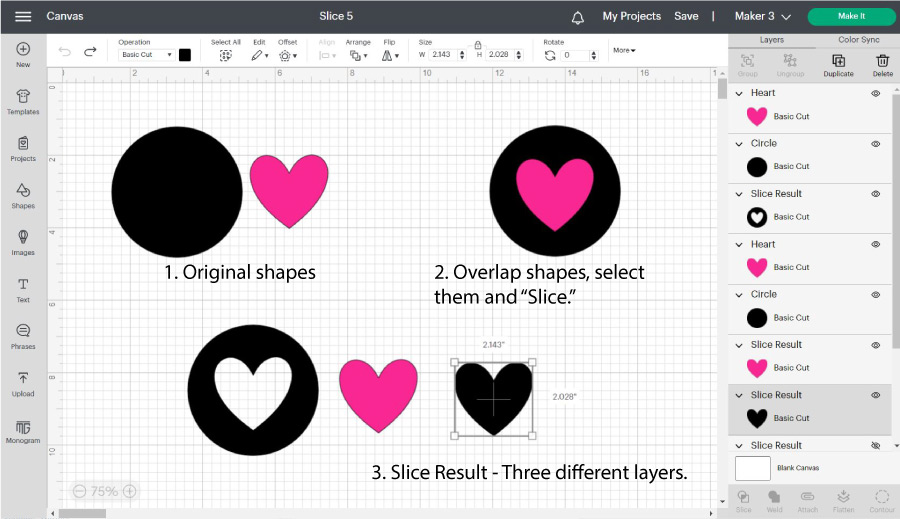
Ready to see Slice in action? Check out the following graphic, and if possible, follow along, so you internalize the concepts. After slicing, you will always have three or more layers called “Slice Results.“ Easy, right? Most of the time, you’ll have three “Slice Result” layers. But here’s a case where you have four different “Slice Results.” The number of results doesn’t really matter. Simply delete the pieces you don’t need. Sometimes, even without a clear vision of my project, I slice things that don’t make sense just to see how a shape will change into another one. For instance, from the “Slice Results” above, I could form an abstract heart and triangle. When you keep trying new things, new ideas will come to your mind. I am amazed at how different were my first projects vs. my new ones.
How to Slice Multiple images on Cricut Design Space?
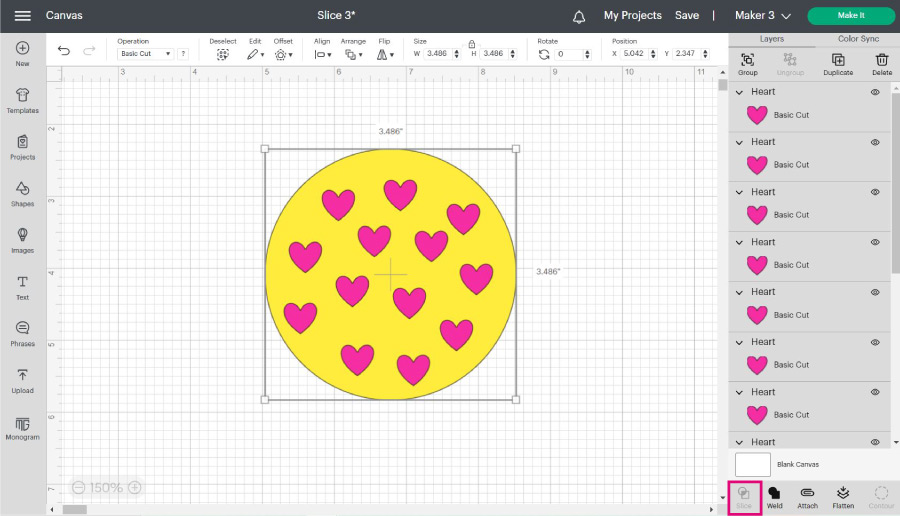
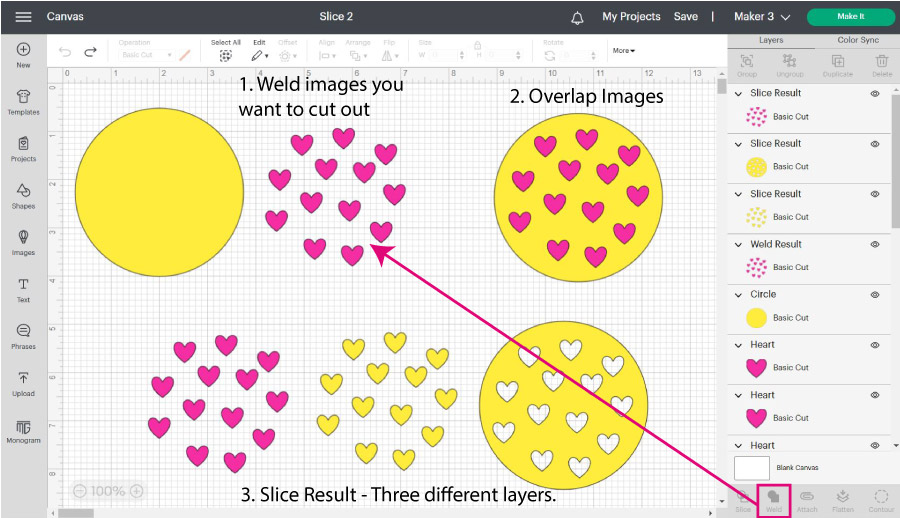
What’s rule #3 of the Slice tool? You can’t Slice more than two layers at the same time. There will be a moment when you’ll need to Slice multiple images simultaneously. Let’s take a look at the following screenshot. We have a yellow circle with multiple hearts on top. My goal with this design is to cut out all hearts from the circle. Do I slice every single heart out? No, thank you! That would take forever. The answer to this riddle is the “Weld” tool. “Weld” will take all those scattered heart layers into a single one. You need to do this to slice out multiple images and shapes from another layer. IMPORTANT: After welding, you won’t be able to separate the hearts, so if you think you will need them later on, you should make a copy, then group them all, and hide their visibility. I explain this better in my “Weld, Attach and Group” article. All these options are intertwined, so I encourage you to check them out.
Using the Slice tool to Crop Images in Cricut Design Space
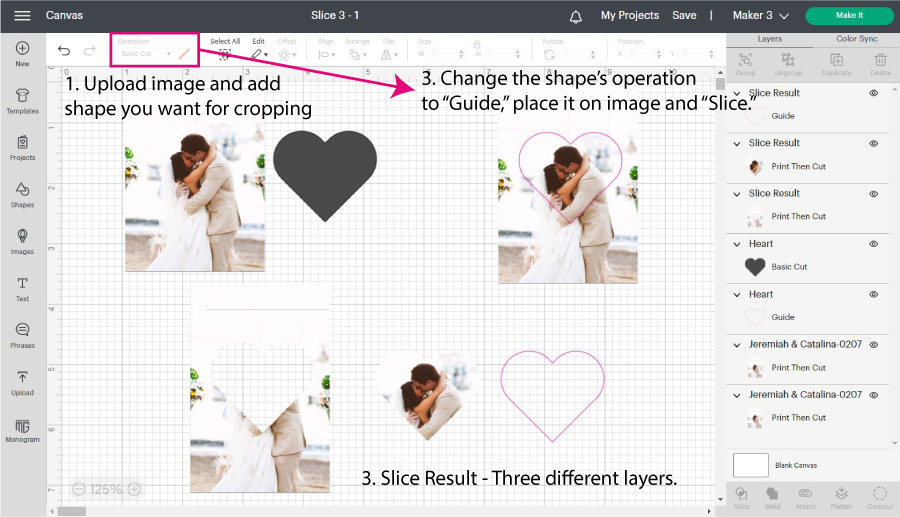
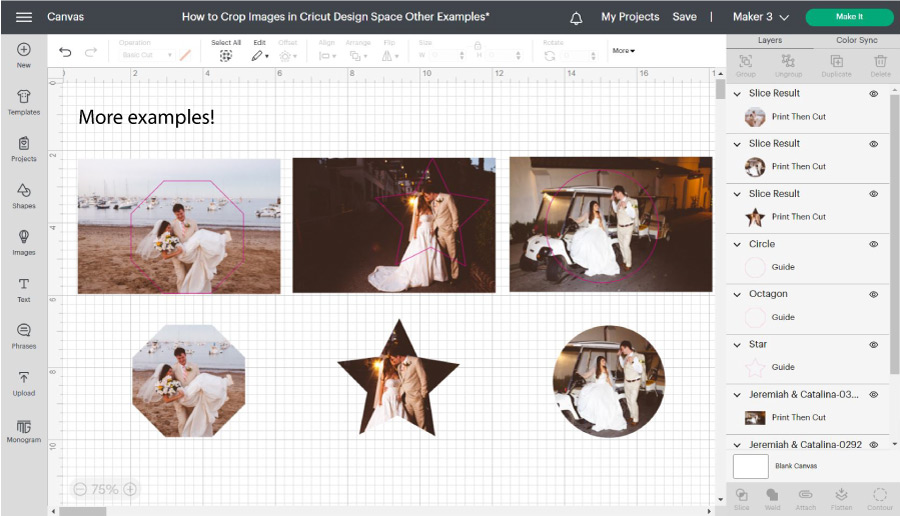
I have seen multiple tutorials on Cricut Design Space, but I have yet to see one where you can learn how to crop Images and photos. Complex images or photos like .jpg or .png files are not meant to be cut piece by piece like an SVG or cut file. These types of images are for you to “Print Then Cut. “ When you upload the photo, you DO have the option to crop it, but that is a square crop and nothing like what I am about to show you. If you want to learn the Print then Cut process for photos or .jpg images, I encourage you to read my fantastic tutorial. Ready for cropping? Let’s see more examples. I used an octagon, a star, and a circle to create different crops and effects for my images. If you want more of a standard crop, you can also use a square and unlock its proportions to create a rectangle. Note: the proportions can be changed by selecting the shape/layer and clicking on the little lock on the top menu.
Using Slice with Text
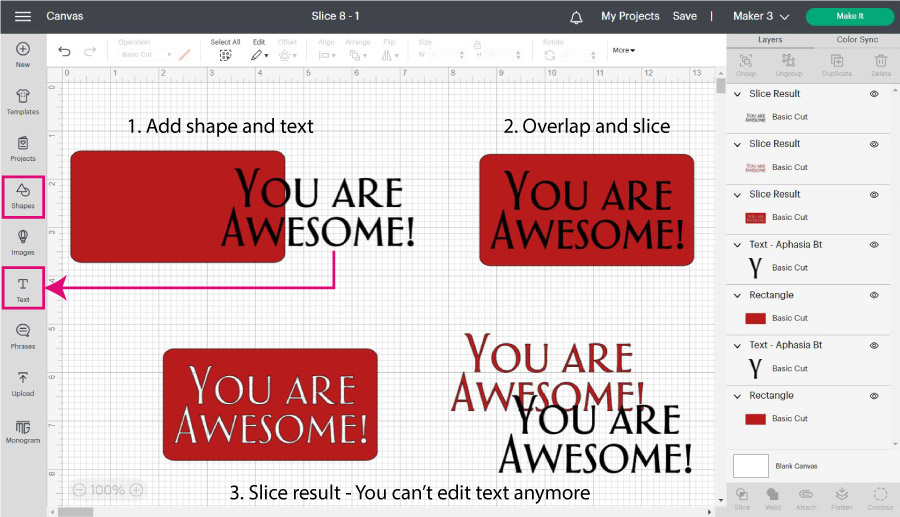
Whenever you slice text against another shape or element, you won’t be able to edit that text again. Other than that, the process is identical. If you think you’ll need to edit your text, I encourage you to make a copy and hide it so you can use it later.
Use Slice to Change Colors and Shorten Images
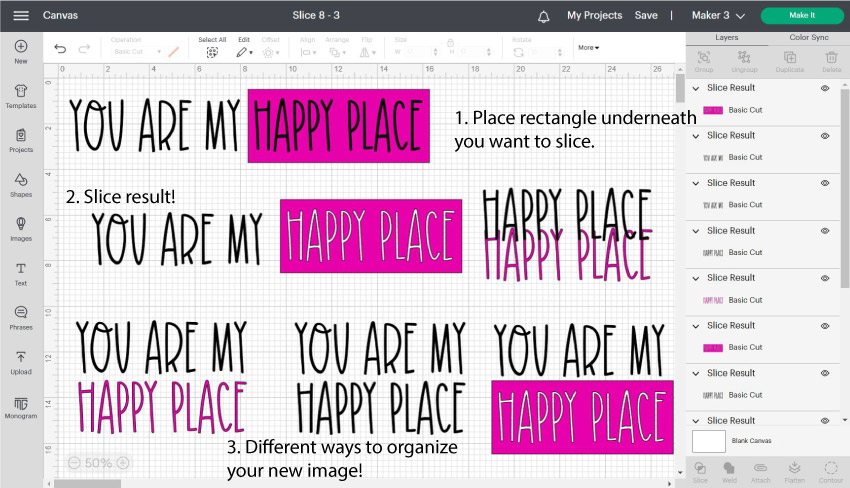
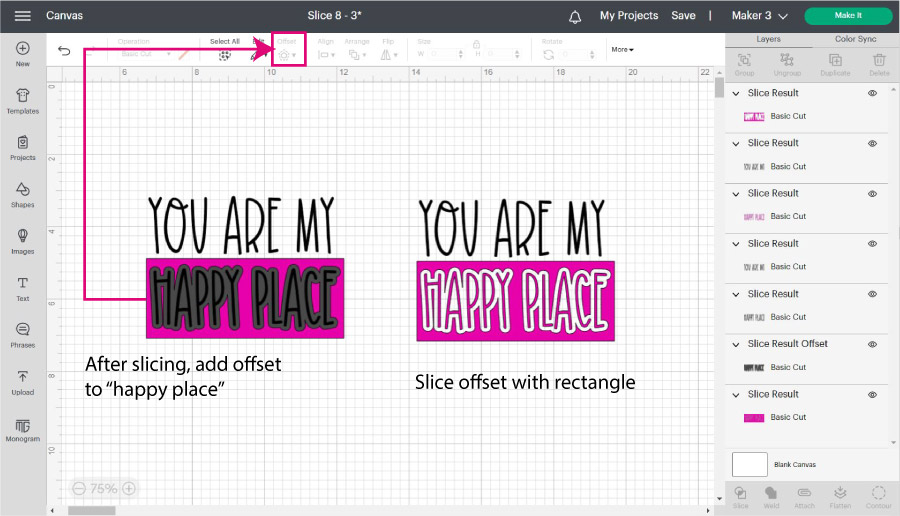
Sometimes, images come in a single color, or the placement doesn’t look as good as you would like. The following image, “YOU ARE MY HAPPY PLACE,” is on a single line. Nonetheless, I don’t want my image to be that long; plus, I also want a little color! I loved the rectangle result, but I want to add an extra touch! After slicing, select one of the “HAPPY PLACE” slice results and add a small outline using the “Offset” tool on the top menu. Select the offset with the rectangle and Slice. Delete all the unwanted pieces, leaving behind the pink rectangle and the pink “HAPPY PLACE.” Don’t you think this new design looks better than the original? If there are elements of a particular design you love, but there’s something off, you can always use the Slice tool to mix things up.
Using Slice with the Offset Tool
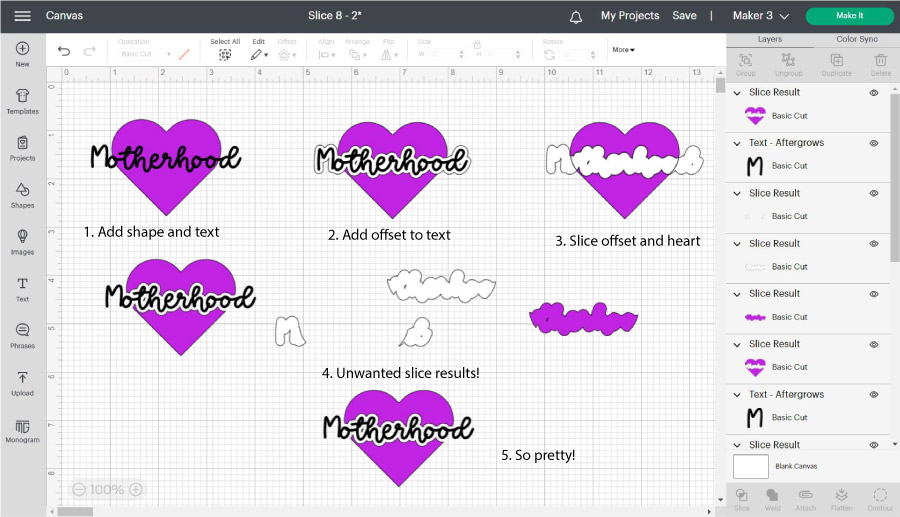
On the mini tutorial, we just saw we used the Offset tool after we sliced. I love making outlines on my designs because they add a lot of balance and beauty. Be prepared to make a project ten times better when you combine the Slice and the Offset tools. Take a look at the following screenshot, and let’s have a little chat. Imagine you’re making a t-shirt with a heart and something meaningful on top. In this case, I used the word “Motherhood.” As you can see in step one, something is missing; the text doesn’t seem to flow with the heart. Wouldn’t you agree? To make the design flow better, let’s do the following: Note: The offset tool doesn’t work on android. Learn more about using Offset in this tutorial.
Using Slice to Make New Shapes and Designs
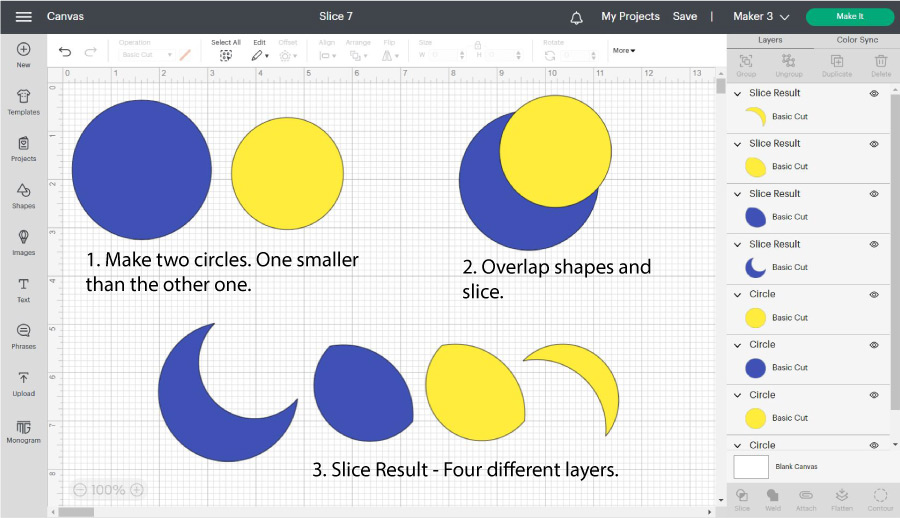
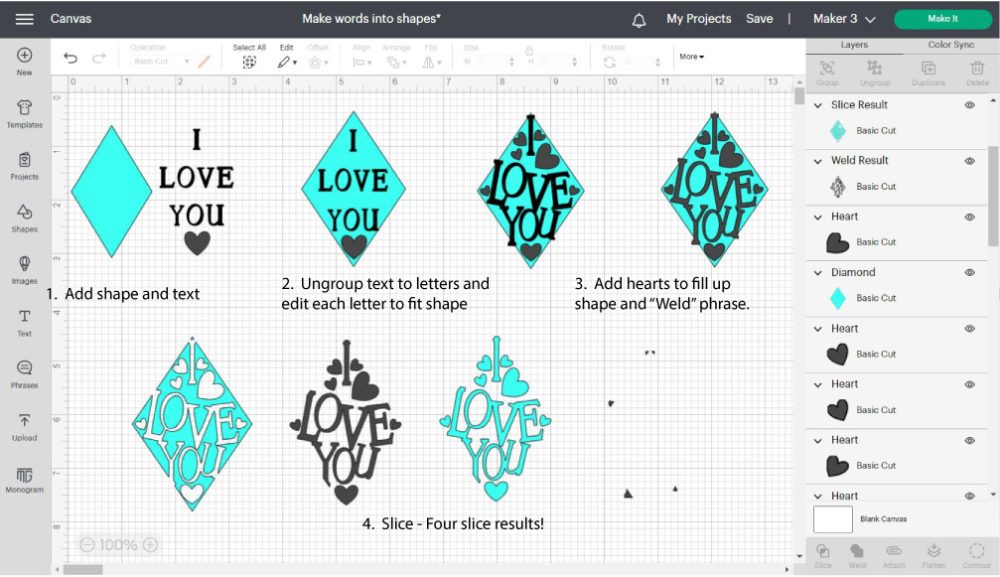
Cricut Design Space is a little elementary; there’s no pen tool for freestyle drawing, and if you want a quick image, be prepared to pay if you don’t have Cricut Access. If your image is simple enough, you may be able to make it with shapes and the Slice tool. Let’s see how to make a moon using the Slice tool. You can also make unique cut-outs using shapes and text. Doesn’t that diamond cut-out shape look beautiful? I cover more examples and tips to make these sorts of projects in my how-to work with shapes in Design Space tutorial.
Slice Tool and Grouped Images
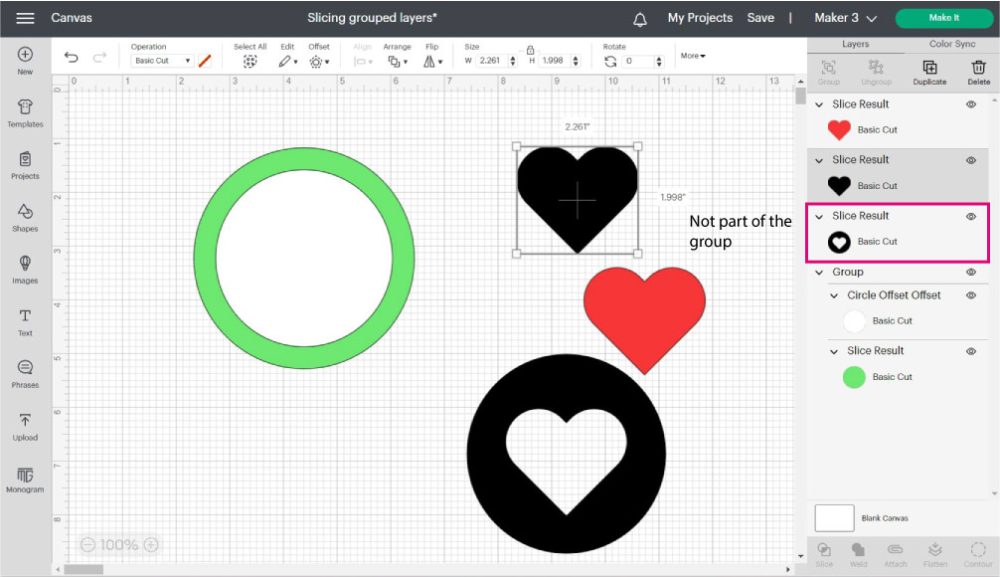
Let’s talk about slicing elements that belong to a group. If you have a group (not a multilayer font), you can ungroup before slicing or select the layer you want to cut against from the layers panel. After slicing, the element will no longer be part of the group.
Slice Tool and Multilayer Fonts
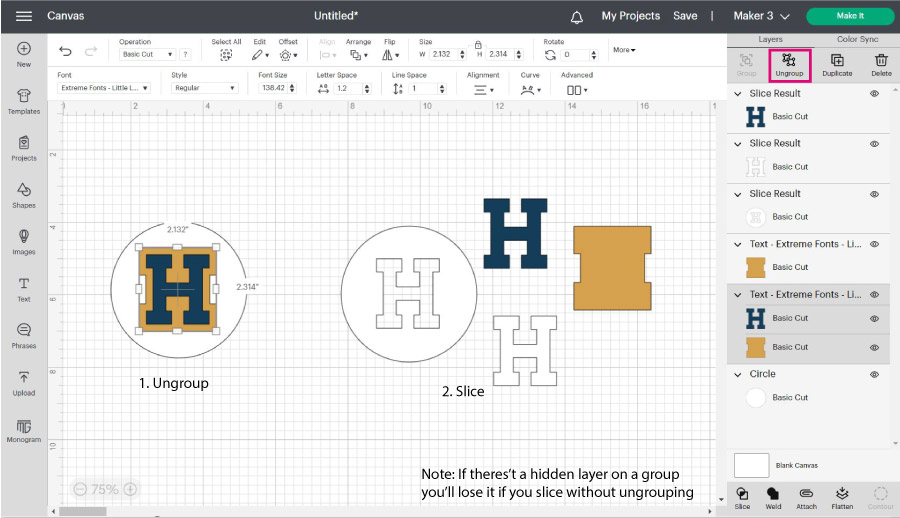
Cricut has these cool fonts called “Multilayer.” These fonts have different grouped layers; however, most of the time, one or more layers are hidden. You have a couple of options whenever you want to slice a multilayer font.
Slice VS. Other Cricut Design Space Tools
At this point, you should know how to use the Slice tool in your projects. While learning to navigate Design Space, I often got confused with the tools next to Slice. Since I want you to have the best experience, here’s a comparison of Slice vs. Weld, Attach, Flatten, and Contour.
Slice VS. Weld
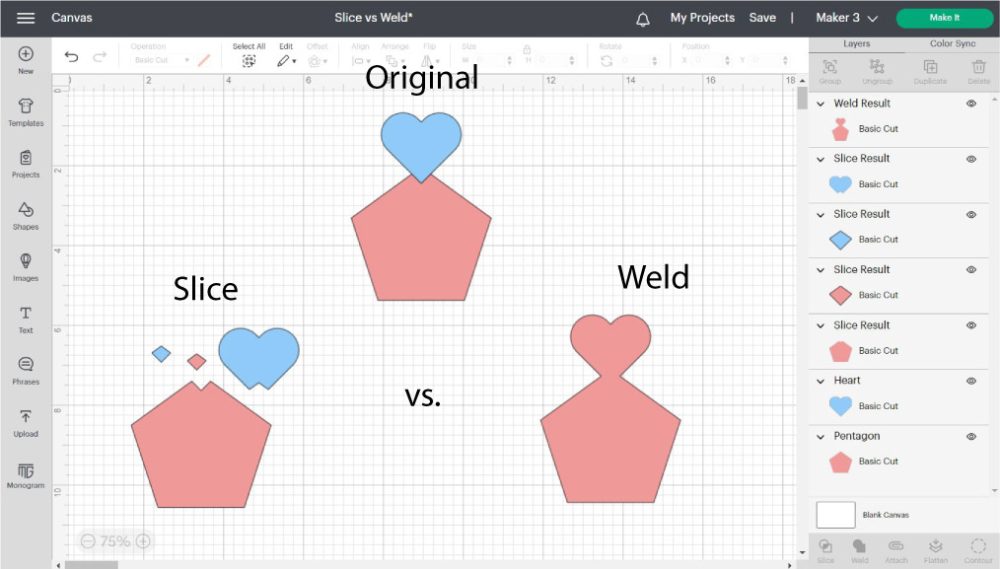
The Slice tool allows you to cut out elements using two different layers. However, the Weld tool will enable you to combine them into a single layer. When slicing, you can only select two layers; but there’s no limit of layers when welding. As you can see from the screenshot above when I sliced the original design, I had multiple layers (Slice Results); however, when I welded the original design, I created an entire shape. Both tools are equally important and can be used together on a particular design. Remember when we sliced multiple hearts out of the circle?
Slice VS. Attach
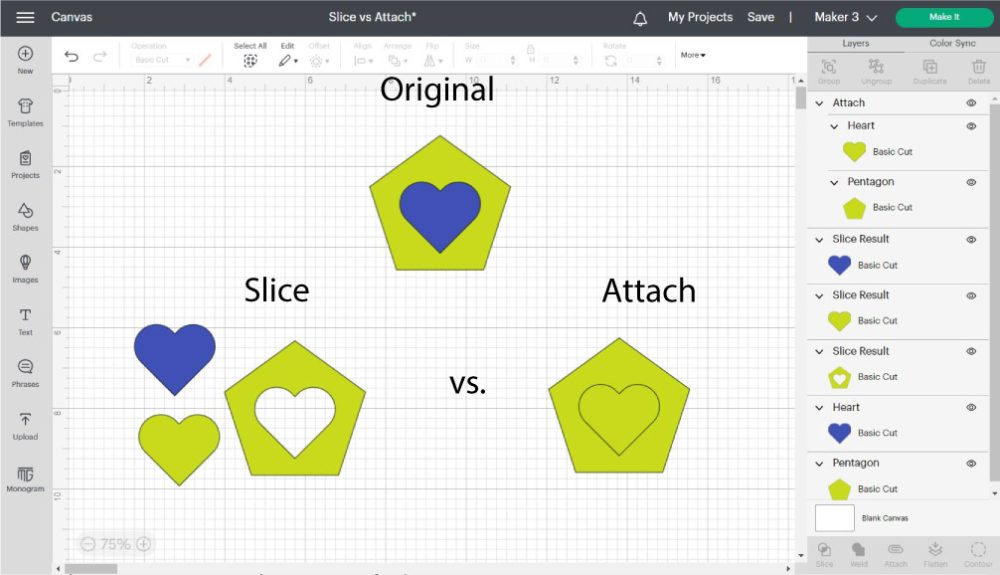
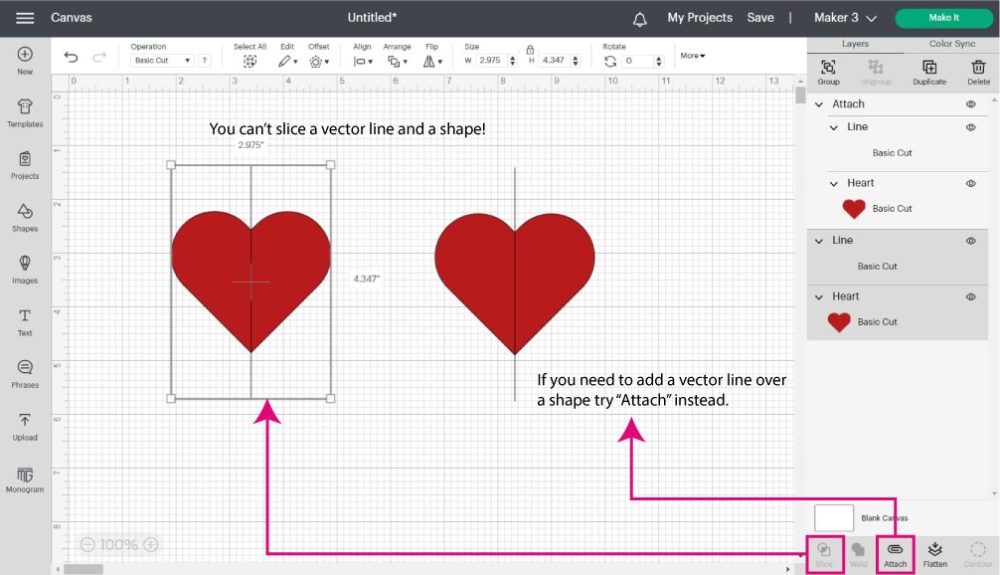
Attach, in my opinion, is one of the most essential tools in Cricut Design Space. Attaching allows you to keep all the – linked – layers together on the mat when you send your project to your machine. Although a particular design may look different in Design Space when slicing and attaching, sometimes these tools can have the same effect on your project. For instance, in the screenshot below, if you wanted only to cut a pentagon with a heart, you could either slice a heart from it or attach it. However, if you wanted to write a heart on a pentagon, you would need to use Attach and change the operation of the heart to “Pen.” Sometimes, you may want to use Slice to cut a shape in half using a solid line (vector line). Unfortunately, you can’t slice or weld vector lines with other shapes. In these rare cases, you must use Attach. Which tool should you use? I use the one that makes sense for the final vision of my project. If I am thinking of a cut-out, I use Slice, but if I am thinking about keeping something together when I send my project to cut, I use Attach.
Slice VS. Flatten
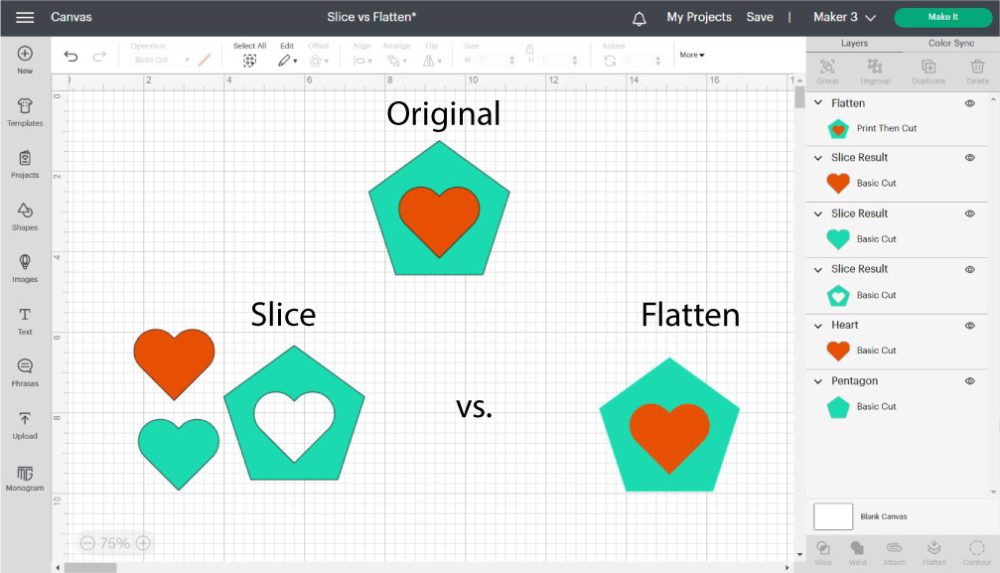
Slice and flatten don’t really mix. Both tools have very different purposes. Slice will help you make nifty cut-outs, and Flatten tells your machine to print and cut your project. You can use Flatten on a project you used the Slice tool to make a new design; however, you can’t use Slice on flattened layers. Learn all about the Flatten tool and Print then Cut on this step-by-step tutorial.
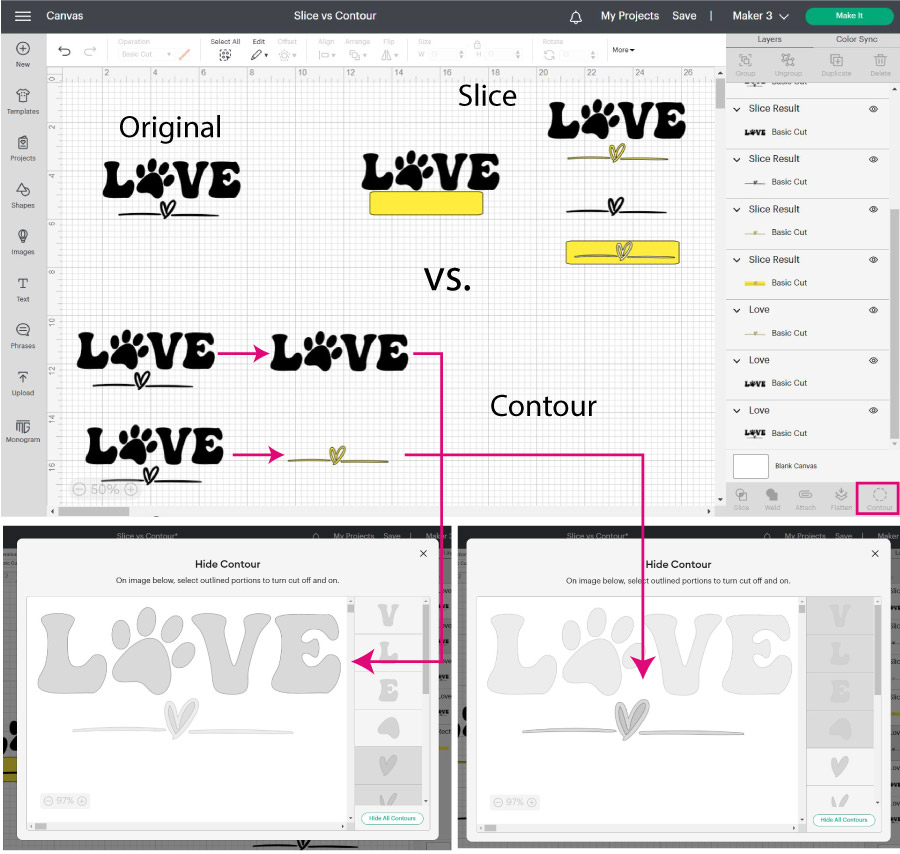
Slice VS. Contour
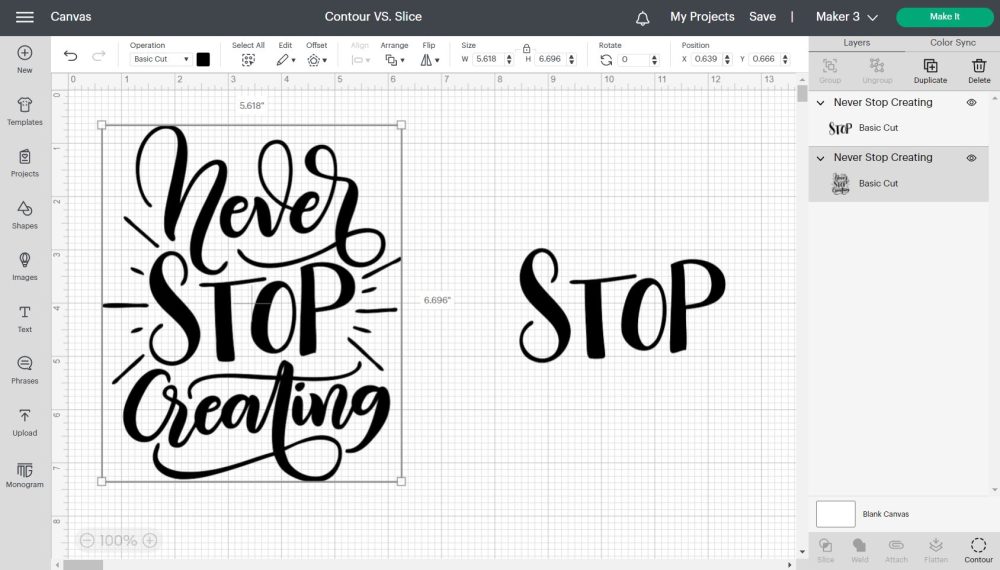
The primary purpose of Contour is to hide an element from a design. Have you ever heard of “All roads lead to Rome?” Sometimes you can accomplish the same effect in Design Space with different tools. However, one path can be more time-consuming. I’ve had comments on my blog where people tell me how they did something different on a particular project. I love those comments because it shows me that no matter how good you think you are, there’s always a better way. For instance, in the following screenshot, I wanted to modify the original image so the bottom part was yellow. With the Slice tool, I only have to add a yellow rectangle and delete the unwanted pieces. However, I have to make a copy of the original design with Contour. I need to hide the bottom elements for one of the copies, and for the one on top, I need to Contour the word love. For this case, I prefer using Slice. But sometimes, you may want to cut out a very irregular element, and you can’t isolate it with a shape. In that case, Contour is the best alternative. Take a look at the following example. If you try to cut out the word “Stop” from the original design, prepare to take some time and fail while trying. For an image like this, use the Contour to hide the elements around. Read my Contour tutorial to learn all the cool things you can do with it!
What is the Slice and Set Method?
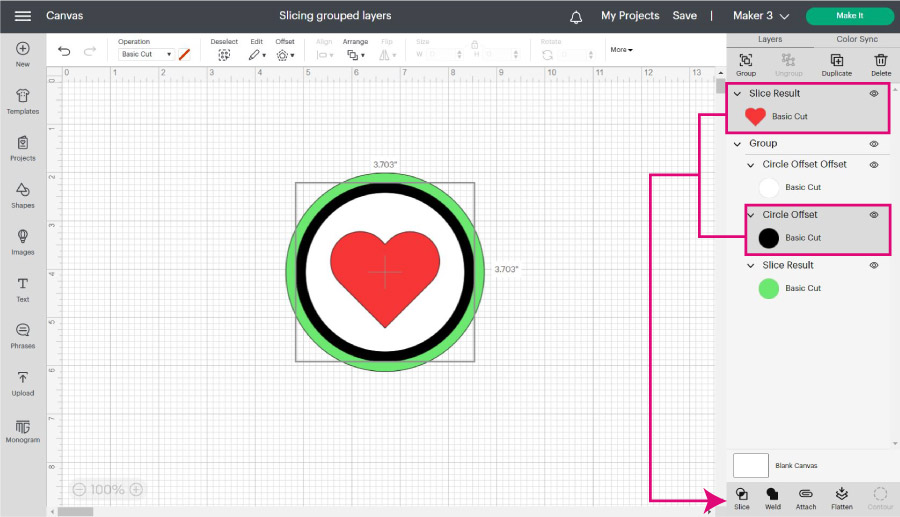
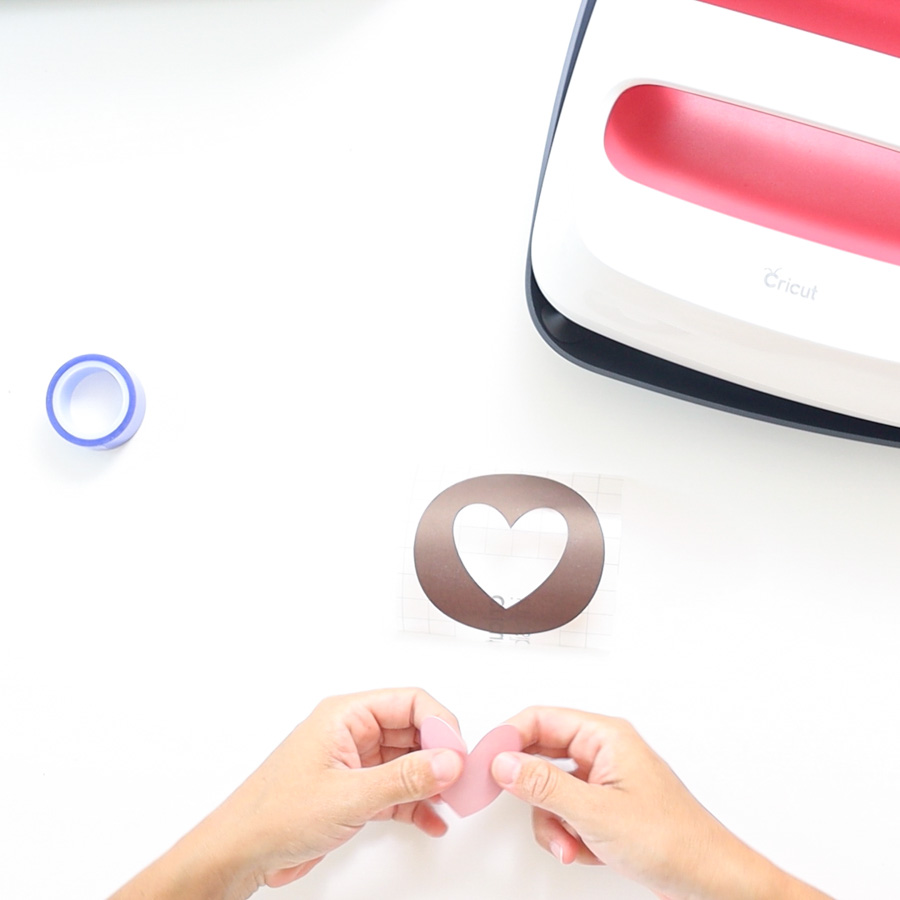
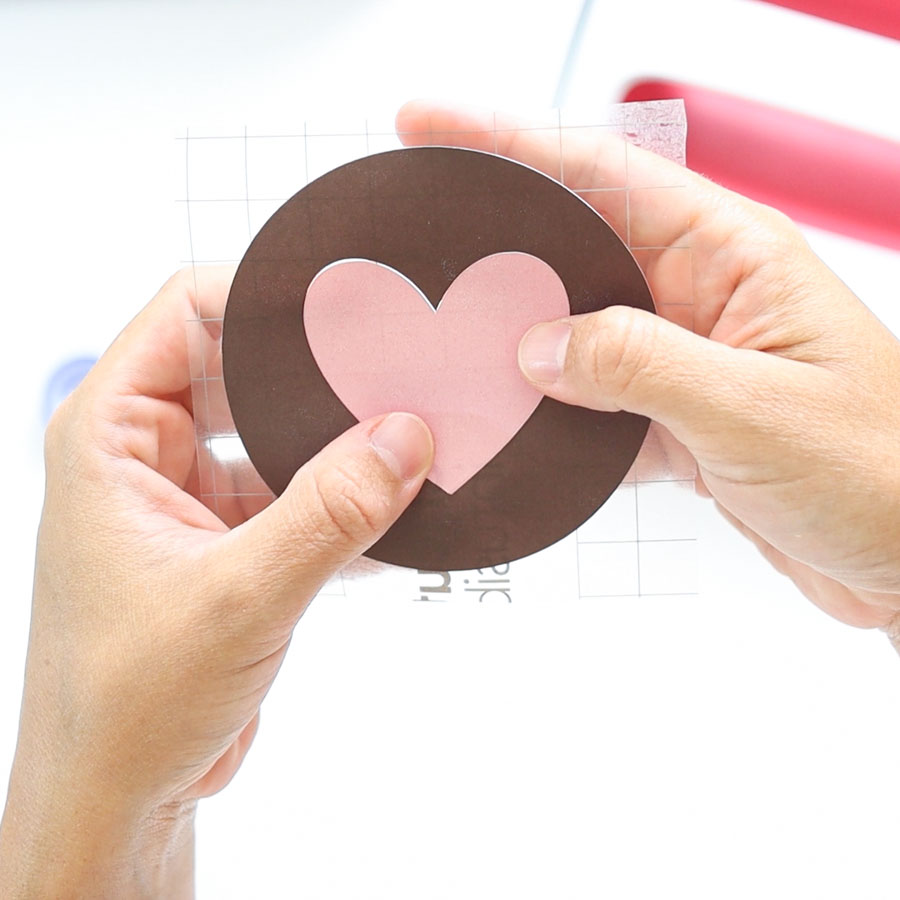
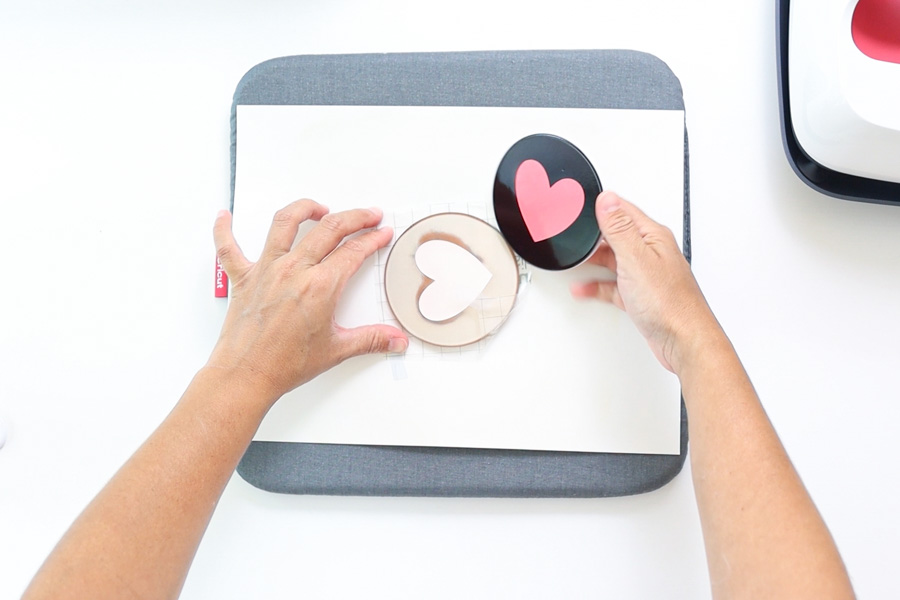
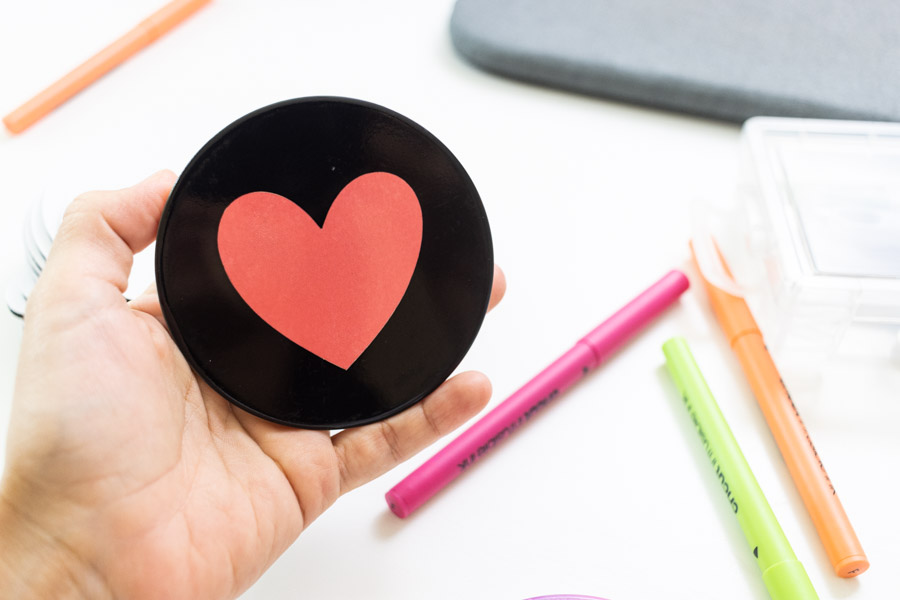
Most examples you saw throughout this tutorial aided you in making your project look awesome and unique. However, there are times when you must use Slice, or your project may fail. This is extremely important when using materials like Cricut infusible ink, where your project will be ruined in you don’t apply this method. Or when you’re layering iron-on and don’t want your project to be super bulky. Look at the following example (with real-life pics). I wanted a black coaster with a heart, and I wanted to use infusible ink products. If I didn’t slice the heart out of the circle, the outcome would’ve been different. You can read more about it on my coaster tutorial. “Slice” is for what you do in Design Space, and “Set” is for what you do when making your project. As you can see below, the slicing process is the same as I performed in other examples, but it was pretty necessary for the type of project I was working on. Hopefully, you enjoyed learning all about this little but powerful tool! Oh! Just so you know, I also have a library full of free SVG files and Printables for all my subscribers, a.k.a. Daydreamers. You can see a preview right here or get access by filling out this form.
More Examples Of Using the Slice Tool.
Here are a few real-life applications of the Slice tool.
Gift Tags: Use Slice to make punch holes.Making Cards with beautiful cut-outsMake monograms in Cricut Design SpaceMake words into shapes.
Make sure you visit each link to learn the Slice technique I used in the projects I just mentioned.
You Did it!
If you followed along with this tutorial and want to put into practice everything you’ve just learned, CONGRATULATIONS, you are a Slice Master!
- Add the shapes or images you want to slice.
- Arrange images the way you want to slice them. In this case, I place the heart on top of the square. Click on the “Slice” buttons located at the bottom of the Layers panel and delete unwanted results.
If you slice text against an image, you can’t edit the text. Therefore, before “Slicing,” make sure your text looks the way you want it.
Do you know it takes me over 25 hours to complete a single Cricut article? I know it’s wild, but I want to make sure you understand everything!I would appreciate your support on Instagram , Pinterest , and YouTube as I try to grow my audience and continue producing great content!