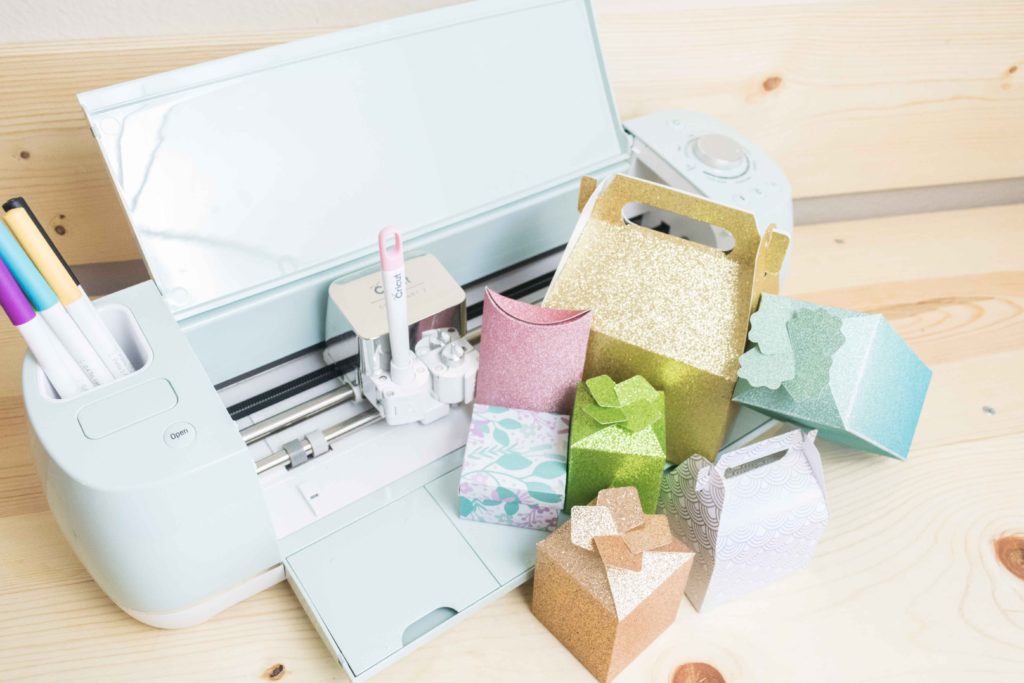
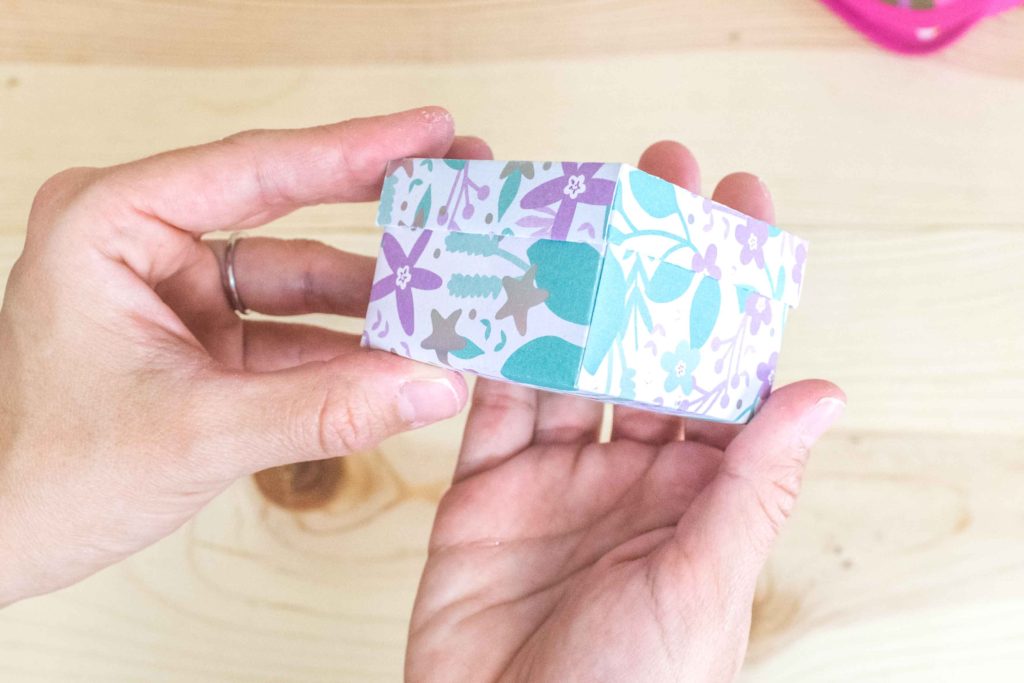
Today, you will learn how to make the most beautiful boxes with your Cricut Maker or Explore machine. I am so excited to bring you this post! I thought it would take me forever because I wanted to ensure that all boxes were perfect concerning measurements, style, and materials. And to be honest, time is something I don’t have a lot of right now. But… Guess what? My Super Dad, an expert in Math, Geometry, and spoiling his almost 30-year-old baby girl lol, stepped in and said he was going to help me bring you the most astonishing and beautiful designs for boxes. You WON’T find these templates anywhere, so shout out to my dad, who made this article possible! If you are a beginner still figuring out Cricut’s software, I recommend this comprehensive and easy Design Space tutorial.
Tools & Materials
Cricut Machine (Maker, Explore)Green MatFine Point BladeScoring Stylus or Scoring Wheel (Maker only).High-quality glue*Cardstock**Practice File (You can download it, righ down below, at the end of this tutorial, you’ll find the other five templates)
* Always use high-quality glue when making cards or a professional project. Kids’ glue will make your paper wet and bubbly once it dries. I always recommend Beacon 3-in-1, although Crafter’s tape or a glue pen will work as well. ** For boxes, I recommend using cardstock. Regular paper is fragile, and your box won’t be sturdy enough. Repeat after me. I will only use high-quality paper, and cheap paper will make cheap-looking projects. Michael’s has a great selection of beautiful papers, and they also go on sale, so make sure to keep an eye out for those good deals.
Making Boxes with Cricut – Should you start from Zero?
If you’ve read some of my other articles, I am sure you know that I LOVE teaching you the logic process and how things work in Cricut Design Space. I am a massive fan of creating things from zero and teaching you how to do them all independently. However, there are moments when we must draw the line to focus on what matters, and that is a beautiful end product. Cricut Design Space is a great way to come up with custom designs, but I noticed that anytime I needed something exact, it didn’t work that well for me, so that is why I decided to provide you with templates and not a how to do it step by step within the software. Now that we got that out of the way let’s make some boxes!
Make boxes with your Cricut – Step by Step tutorial
There are six different templates that I have included in this tutorial (find them at the end of this tutorial). Yay! For this article, I will only explain the step-by-step inside Cricut Design Space for the most complex one. Therefore, the other templates will be just a walk in the park. After going through all of the Cricut Design Space steps and cutting process, I will have a step-by-step tutorial on how to assemble each box template.
Upload Box Template to Cricut Design Space
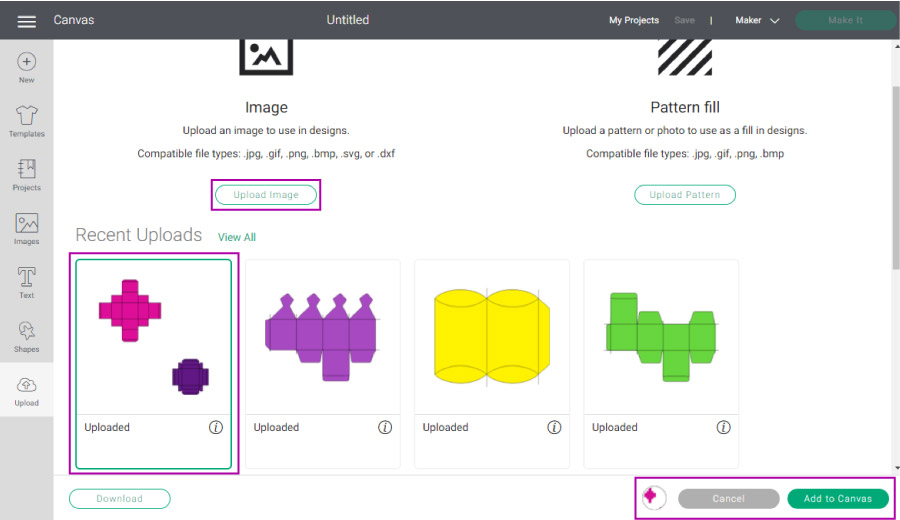
Log into your Cricut Design Space account and click on “Upload,” located on the left panel of the canvas area. Once you are there, click on the Upload Image button, choose the template from your computer, and save it to Cricut Design Space. After you complete those steps, the template will be located under “Recently Uploads.” Select it, and then click on “Add to Canvas.”
Understanding the Template and Getting it Ready for Editing
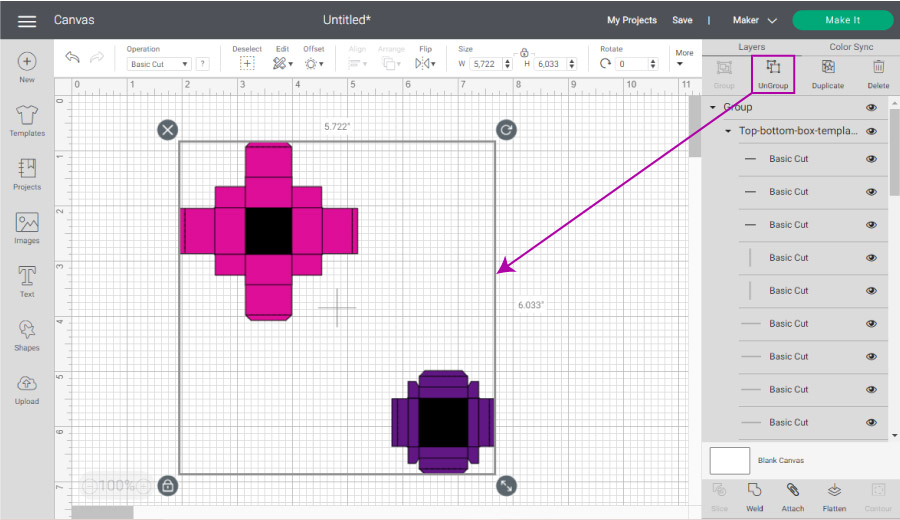
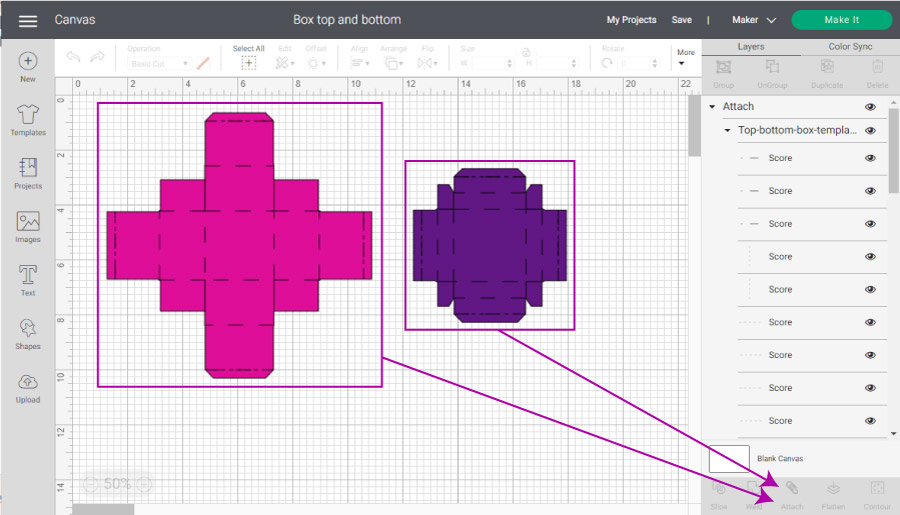
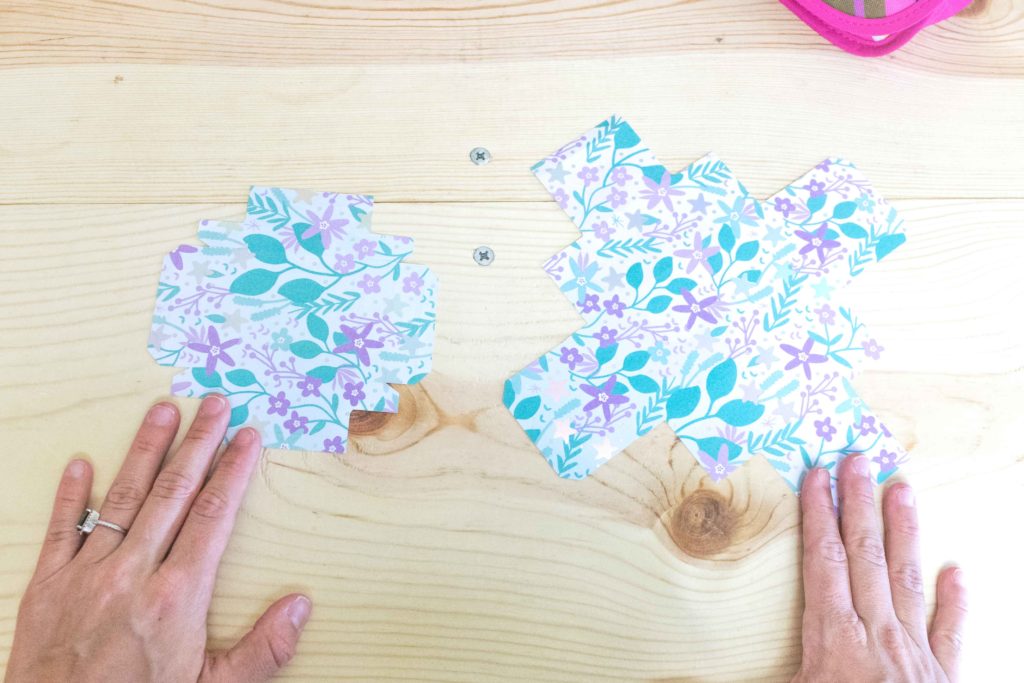
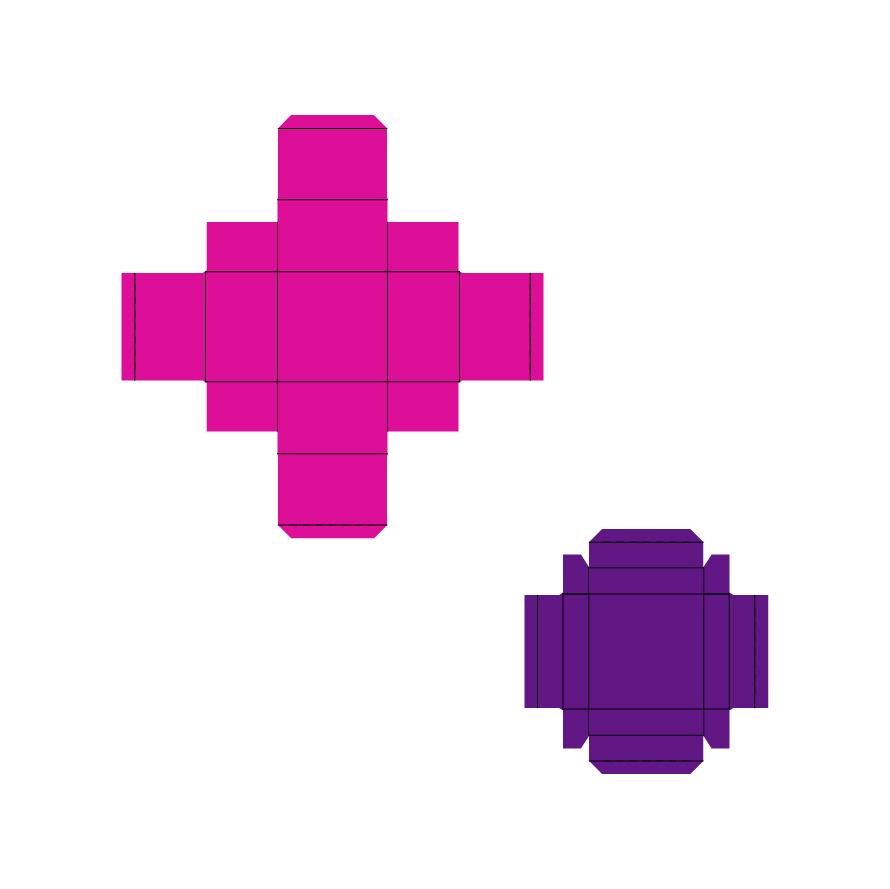
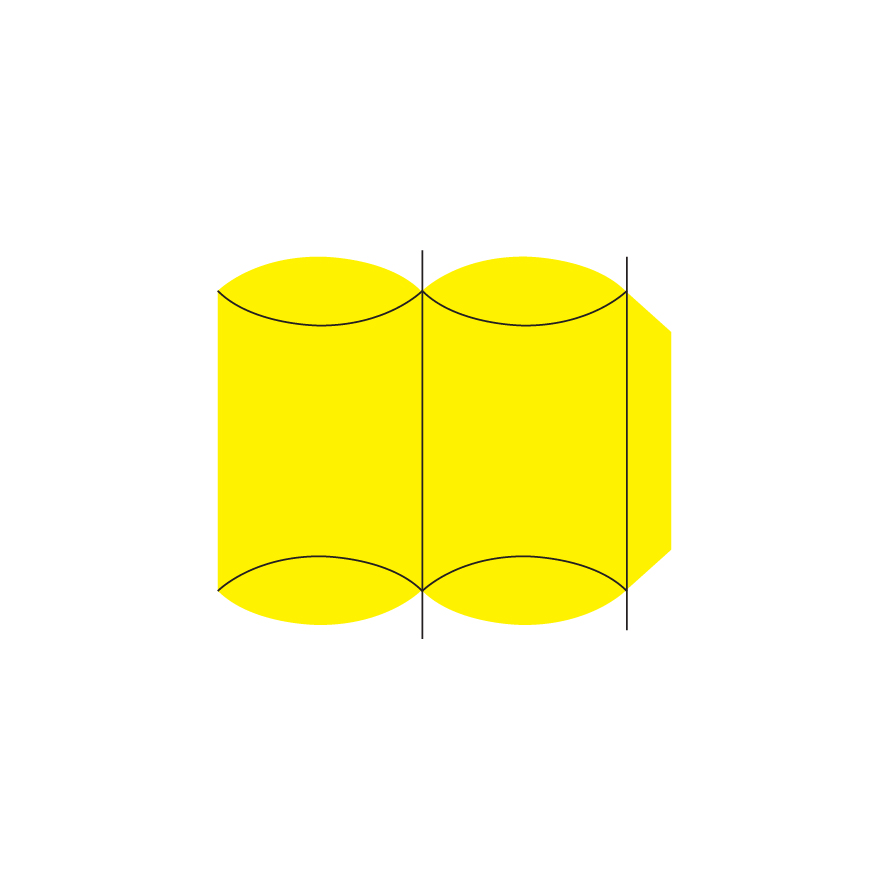
Since this is a “Top” and “Bottom” box, you will have two pieces: the bottom one (the big piece), which is for storage, as well as the top one (the small piece), for the cover. When you insert the file, both the top and bottom parts are grouped. Since we need to work on them individually, select them and click on “Ungroup,” located at the top of the layers panel. Only ungroup once. The other groups left are there to help you to edit things faster. Learn more about Group, Attach, and weld on this excellent guide I put together.
Change Operation
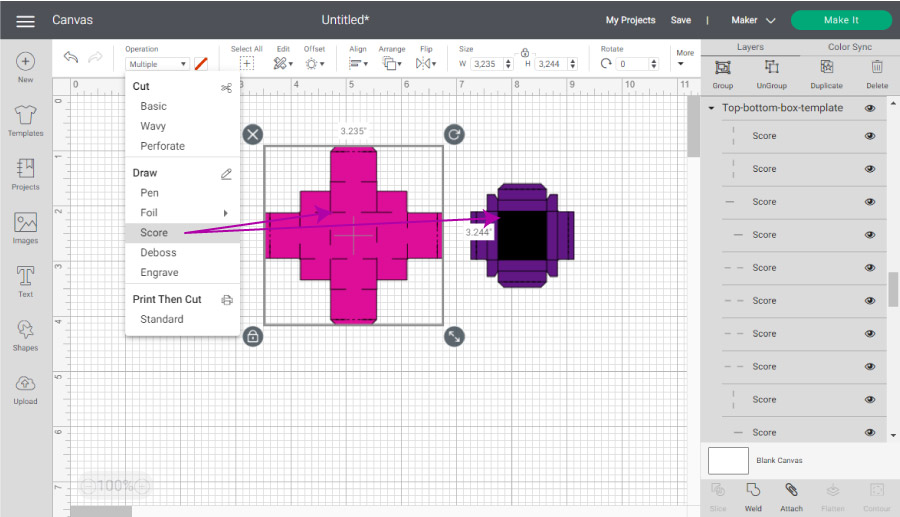
All boxes in the world need to be folded in some way. As you may know, Cricut allows you to create beautiful folds in your materials to make your life and creations much more manageable. In all of the templates I gave you, I grouped the lines that need to be scored. You will know they need to be scored because they are in black and across the whole design. However, this box, in particular, is a little tricky because it has some lines that also cut across the design. So, to find the score lines, click on the black square of the middle and then click on “Operation” – located on the top menu – and change it to “Score.” After changing the “Operation,” you will see that both pieces are now appropriately scored.
Attach, Resize and Make it
Once you are done scoring the lines, we need to assign them to the box. You see, even if everything looks in order in the canvas area, the only way for everything to remain in the same spot is by attaching the score lines to the box template. Select the elements that make the bottom and click on “Attach,” located at the end of the layers panel. Then, repeat the same thing, but this time with all of the elements that make the box’s cover. At this point, you can resize your box as well. Just make sure to ALWAYS increase both parts at the same time WITH THE SAME PROPORTIONS. Otherwise, the measurements will not match, and your box will be useless. Note: This also applies to all of the other templates. After you are done attaching and resizing, click on the “Make it” button located in the upper right-hand corner of the canvas area.
Cutting Process
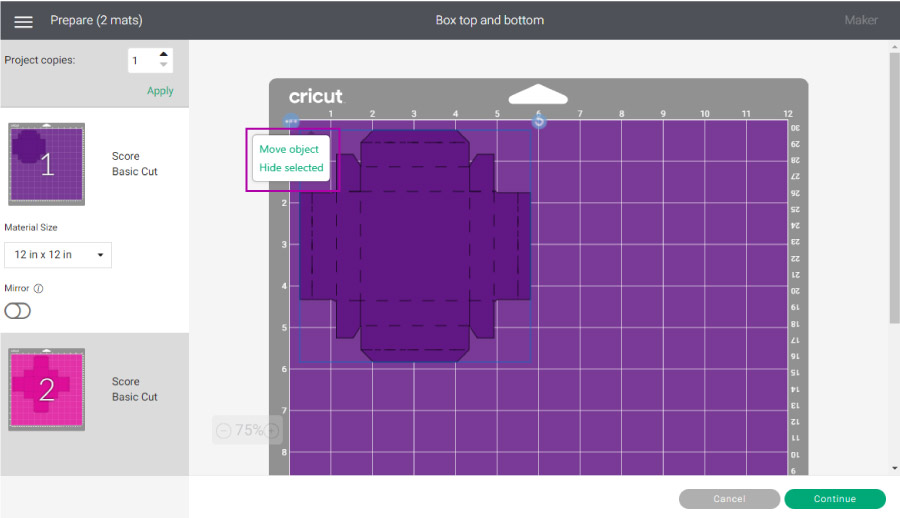
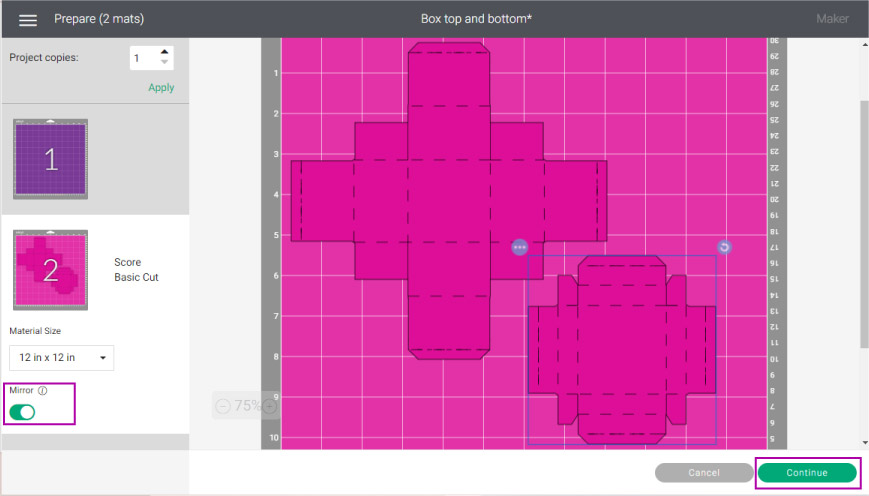
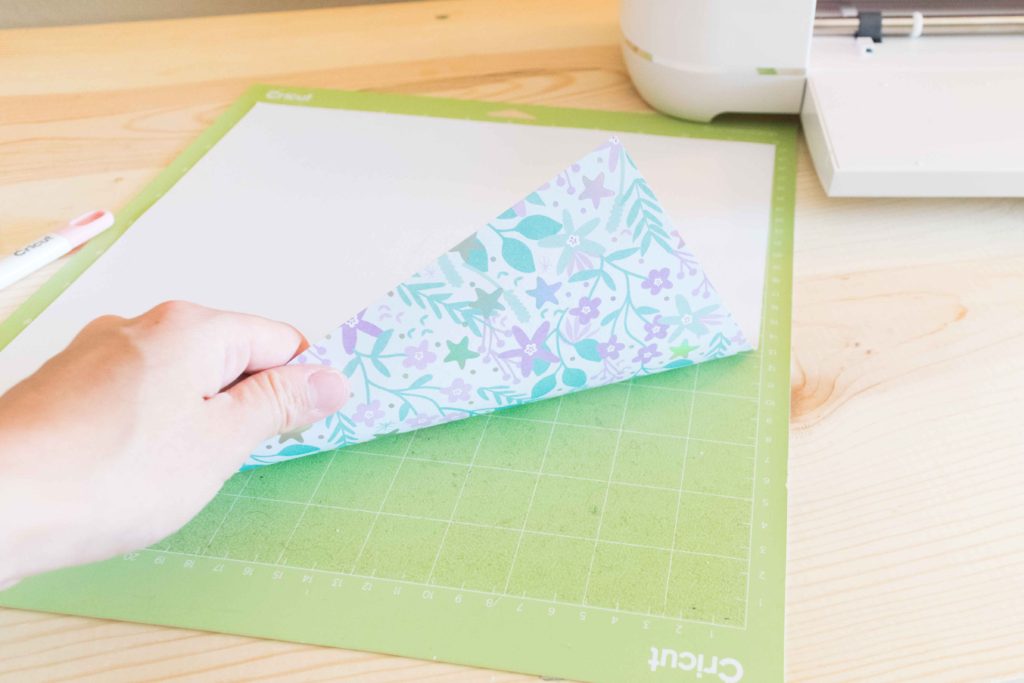
The following screenshot is the window that you will see after sending your box to be cut. Newer machines will ask how to load your materials. On a mat or without a mat. Select “On Mat” to follow along. As you can see, there are two different mats; one for each color. Initially, I thought I would use two different colors, but I decided to use the same one. Since both parts fit in the same mat, I moved the top part of the box to the pink mat. If you are using two different colors, you can just cut your box in two different mats like Cricut instructs – I do have an article on how to cut multiple colors on one mat as well – or if using just one color and the box is small enough, give this technique a try. Now let’s talk about the MIRROR and why it is ON. In my how-to-use the scoring wheel article, I explain that you need to fold your materials towards them whenever you create score lines. So, if you are using one side coated materials like glitter card stock or patterned paper, you need to place your paper pretty side down on your mat. Every single time you do this, you need to turn your mirror ON. However, since this is a box and boxes are all the same mathematically, you won’t have problems if you leave it on. I recommend you to turn it ON because of habit. One day you may need to cut something like iron and forget the importance of this concept.
Select Materials, Load Mat, Go
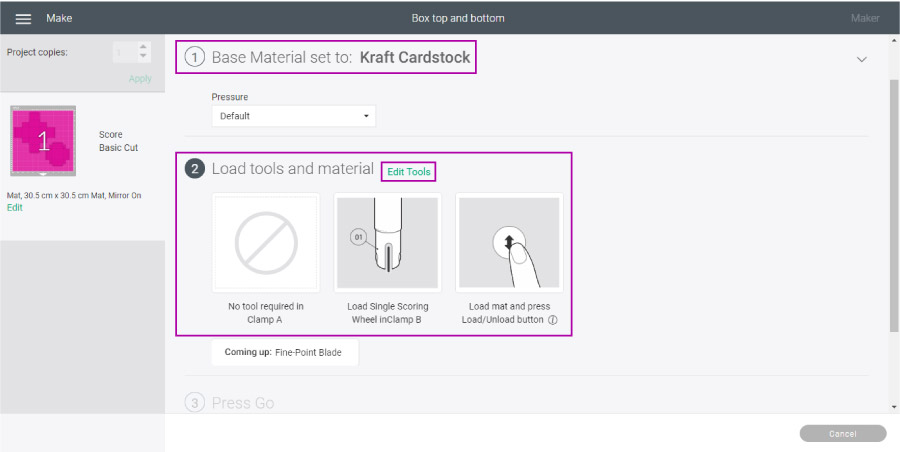
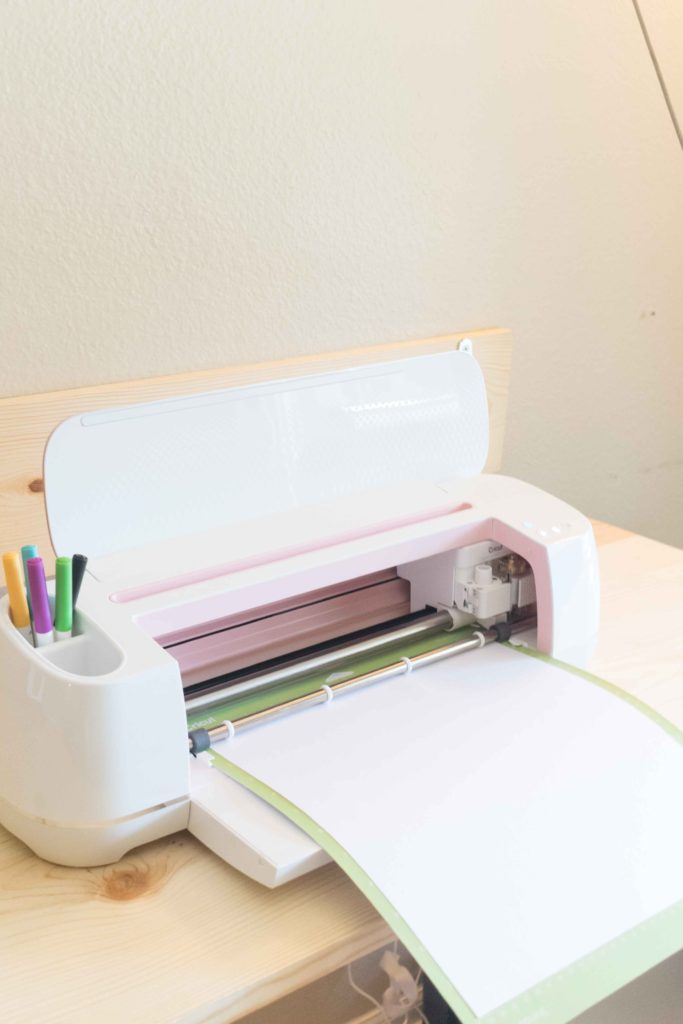
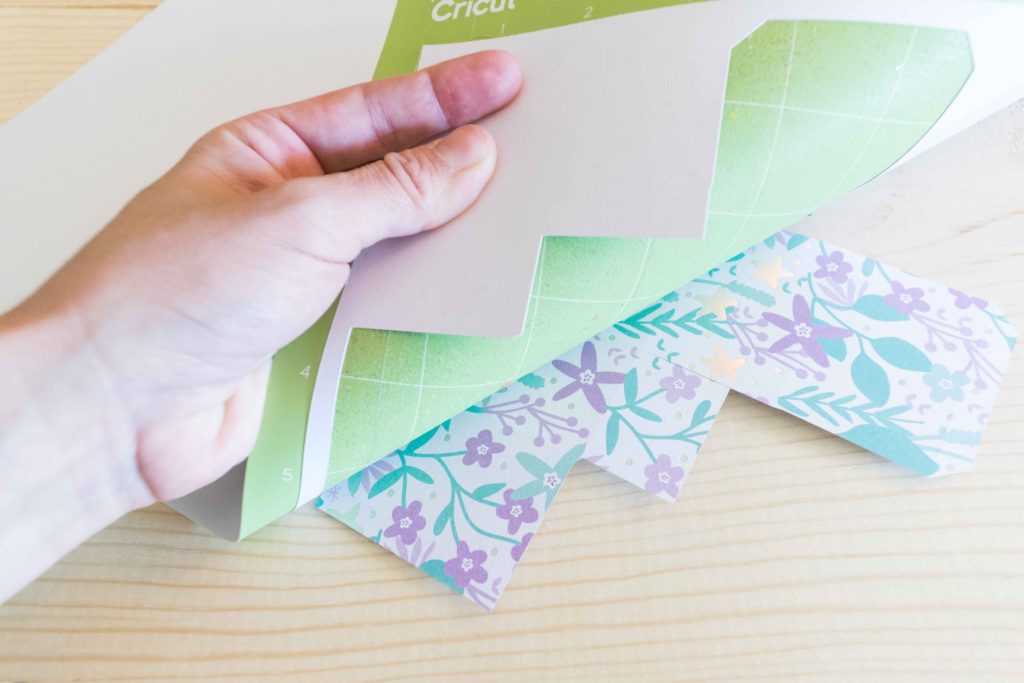
Now it’s time to select your materials. If you have a machine with a “Smart Set Dial,” move it to “Custom” to select material from Design Space and follow along. Go ahead and select your material from the options that Cricut has to offer. If your material does not appear on the most popular options, you can browse all materials by keyword or alphabetically. If you are cutting with any of the Explore Machines, the tools section will prompt you to install the “Scoring Stylus” and the “Fine Point Blade.” If you have any of the Maker Machines, by default, you will have the wheel. But if you want to use the “Stylus,” click on the “Edit Tools” to select the Scoring Stylus. Then, install it along with the “Fine Point Blade.” Note: Check this article I wrote on the Differences Between the Stylus and the Scoring Wheel. I decided to use the Scoring Wheel for this project. If you are using the wheel as well, Design Space will prompt you to install the fine point blade when your Cricut is done Scoring. Finally, after selecting Materials, installing tools in your machine, place material on your mat, load it, and press the flashing GO button on your device. After you are done cutting, you should be left with two different pieces. Remember, the big one is for storage, and the small one is the box’s cover. Now, let’s see how to assemble this box!
How to Assemble Boxes after Cutting with your Cricut
At the beginning of this post, I mentioned that I would only do a step-by-step of one of the six templates (the top and bottom box I provided you with). But, I also said I was going to show you how to assemble all of them.
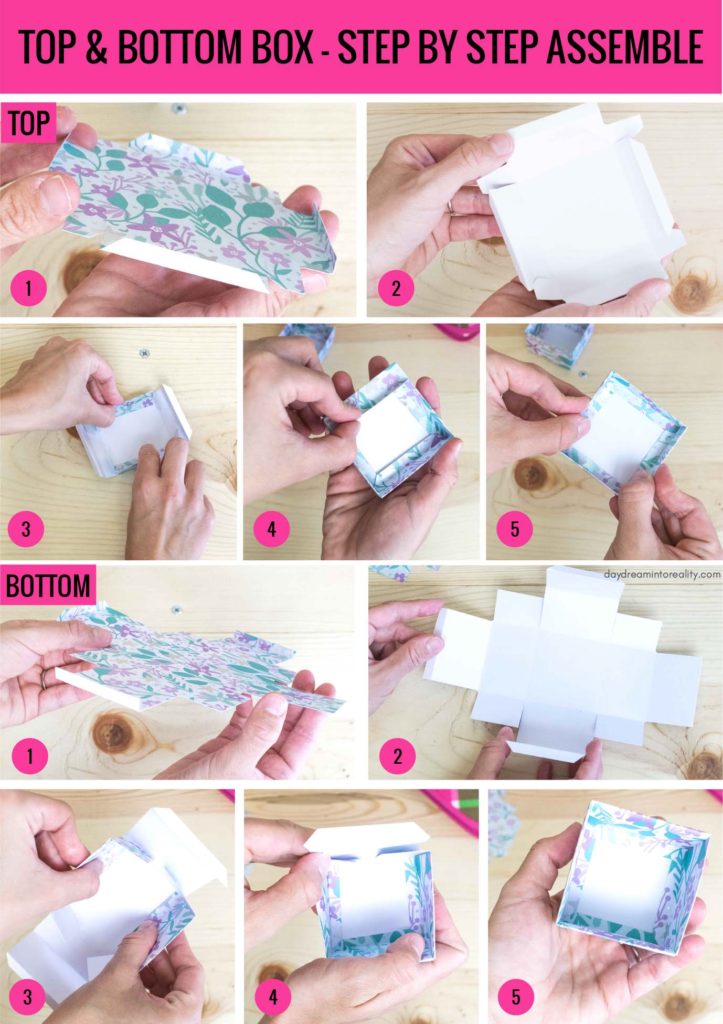
Top & Bottom Box Assemble Process
This box is perfect for small gifts, and it’s just adorable! I love this design because it doesn’t require glue at all when using thick materials like glitter cardstock or poster board. If you use a thin material, you can use a little glue or tape to secure it. Top – Cover Bottom – Storage This part is essentially the same process as the top but with a larger surface area.
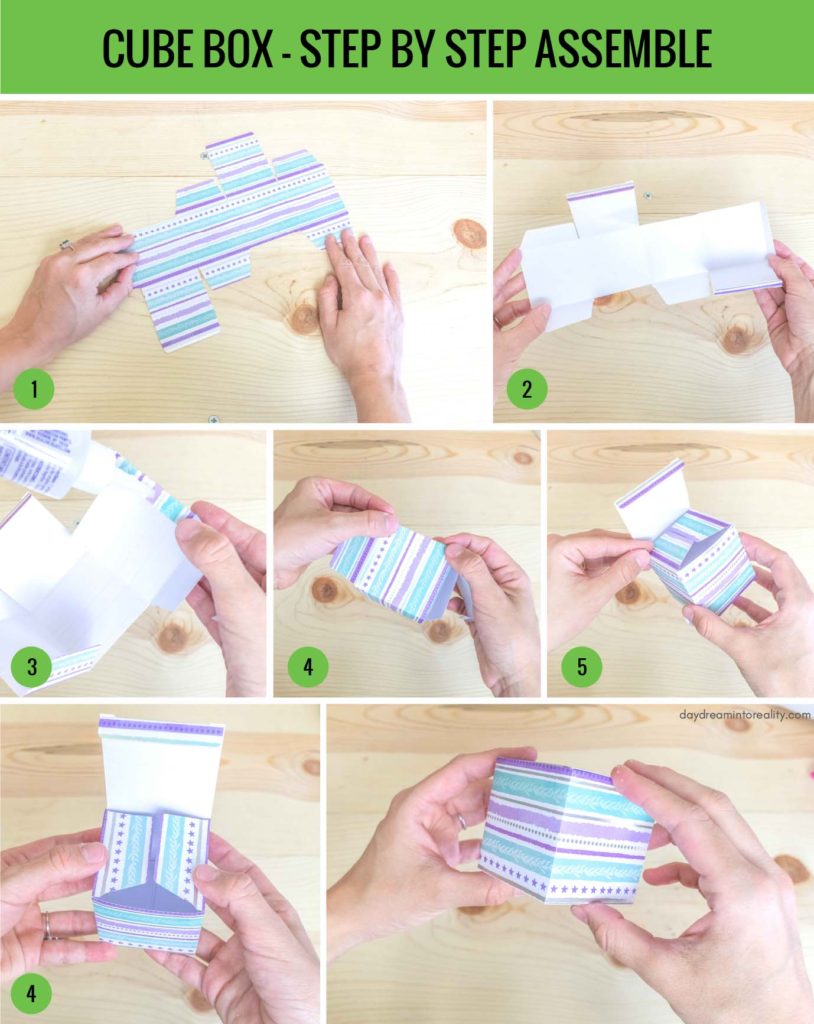
Cube Box Assemble Process
This is the EASIEST box to assemble! You can add extra touches to this type of box to make it extra cute as well. For example, you can use some ribbon to add a bow on top of the box.
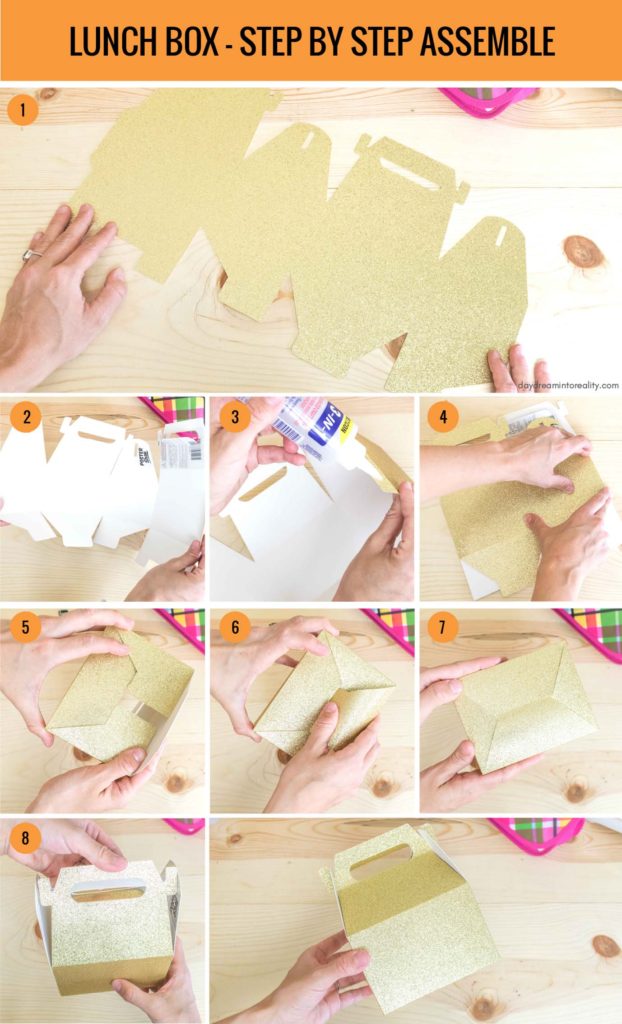
Lunch Box Assemble Process
The Lunch Box is the biggest box of all! If you want to create a fair-sized one, you must use a 12 by 24 inches Mat.
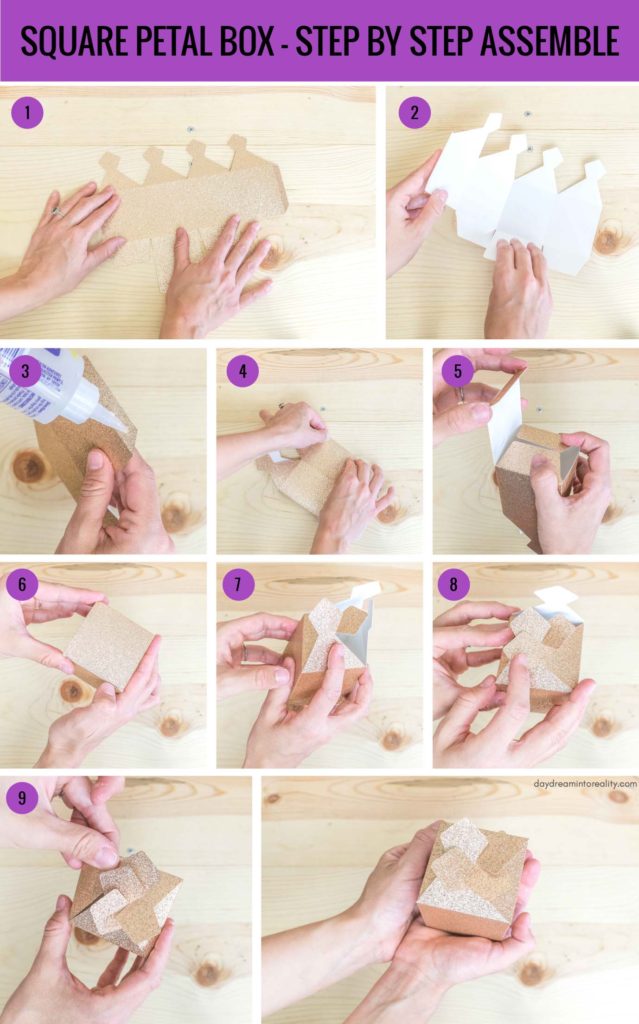
Square Petal Box Assembly Process
This box may seem tricky to assemble. It took some practice for me to get it right, so don’t be frustrated. Remember, practice makes perfect!
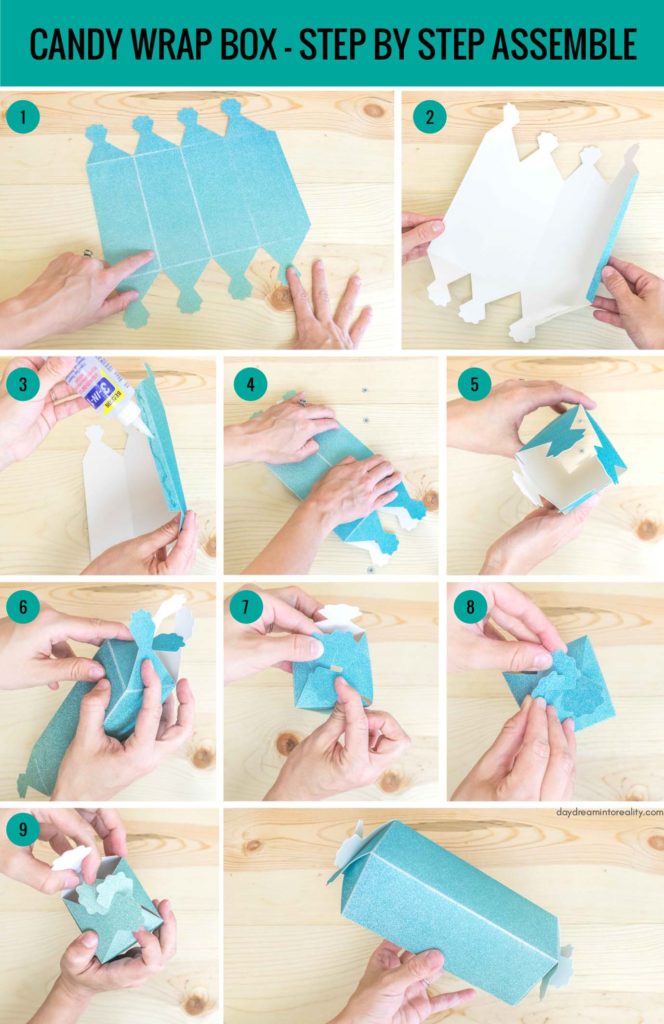
Candy Wrap Box Assembly Process
This is one of my favorite boxes. However, something extraordinary happened when using the scoring wheel on this material. I think honesty is essential. I was about to repeat this box on other material, but I like to be honest with you so you can make an informed choice. I used a very fine glitter card stock for this particular box, and when I used the scoring wheel tip 02, most of the glitter stayed on my Cricut mat. You can see this on step 1 of the graphic down below. I tried using the 01 tip for another box and this same material, and it happened as well, but not that noticeable. I honestly don’t mind. I actually like the effect, but if you want fine glitter paper, make sure to test before you create a large project. Now let’s get to the step by step!
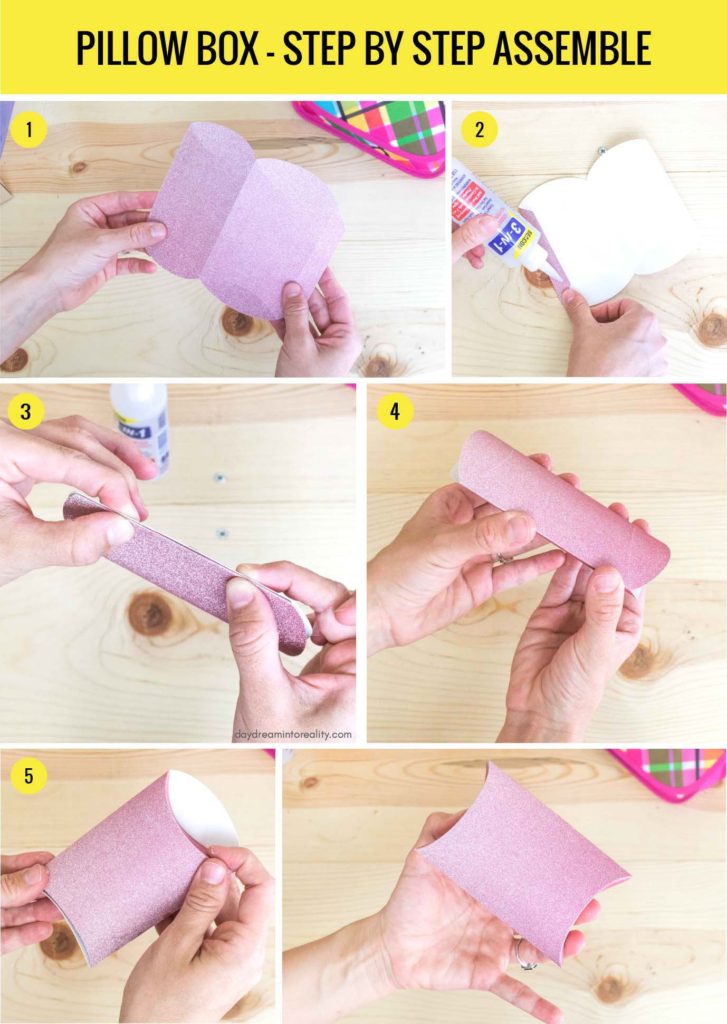
Pillow Box Assemble Process
Pillow boxes are so easy to make, and they are perfect for small presents. In fact, I am planning on making earrings for my friends and family and gifting them in these little boxes.
Free SVG Boxes Templates
These box templates are organized in a way where score lines and cut lines are grouped so that you can change the “Operation” very quickly. To download the file(s), you need to be on a desktop or laptop and click on the button to trigger a download file on your PC. However, I’ve noticed that I can also download them from my iPhone. Depending on your browser settings, your PC sometimes asks where to save the file, although most files will be in your download folder. If the image opens in a new window (this may happen because of your browser settings), right-click on it, select the option “Save Image As,” and choose where you want to save the file. SVG files look like web page files when you download them. NOTE: These files are ONLY FOR PERSONAL use, and please do not upload them to other blogs or any social media platform. It took my dad and me over two weeks of work to bring these resources to you. Oh! Just so you know, I also have a library full of free SVG files and Printables for all my subscribers, a.k.a. Daydreamers. You can see a preview right here or get access by filling out this form. Quick Summary *If using one side coated materials place material pretty side down. **If you are using Scoring Stylus you can Score and Cut without any intervention. However, if you are using the Scoring Wheel, you will need to install this tool first and wait for Cricut Design Space to tell you when to install Fine Point Blade.