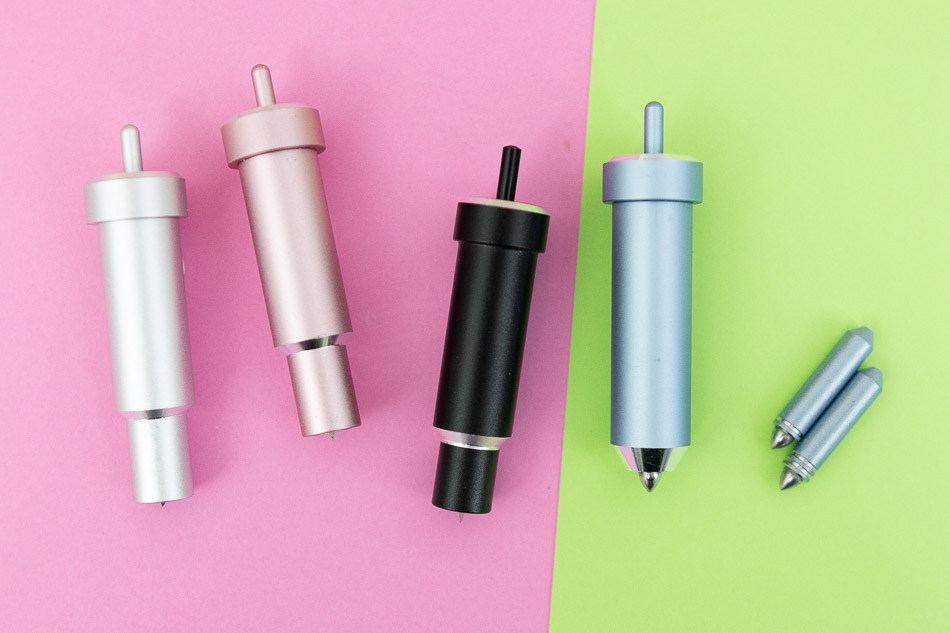
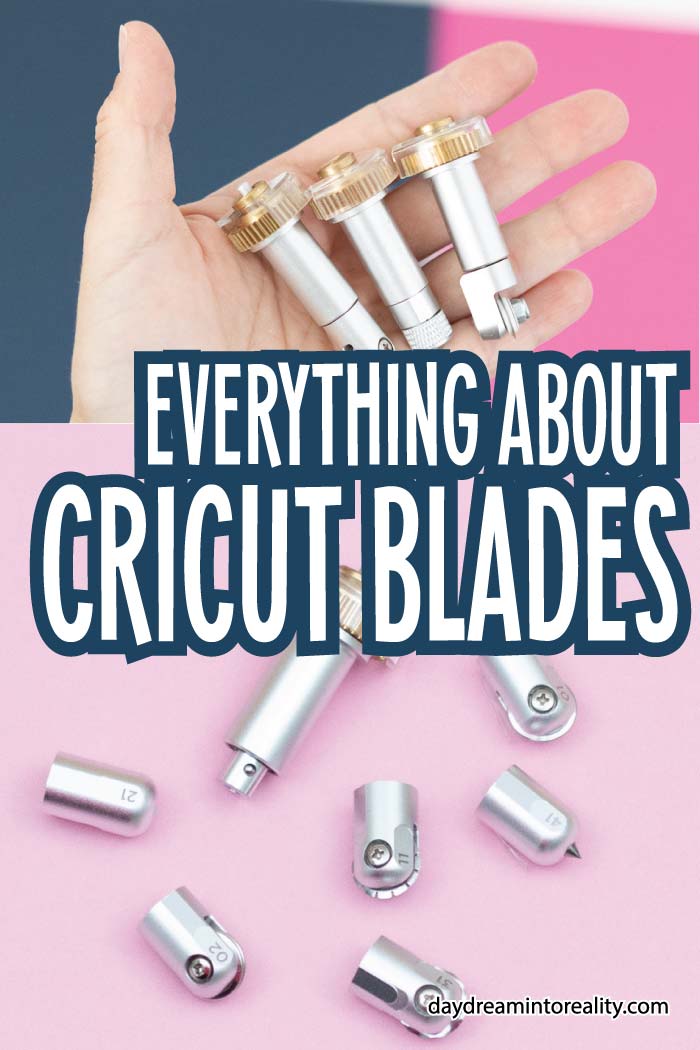
When I first bought my Cricut, I assumed I had everything I needed. I thought it was like a printer, but instead of printing, you just cut. Right? Oh, boy, I was wrong! The Cricut machine is way more complicated than a printer, and there are many things to remember before, during, and after the cutting process. Right now, there are nine types of blades and six other crafting tools available: As you’ll see later in this post, some of these blades are compatible with different machines; plus, some have the same name, but there are two types made for other machines. You don’t need to worry about this, though, because before you cut a project, Design Space will tell you the type of blade you need with a specific material. It doesn’t sound very easy, but everything will make sense as you practice and learn to know your machine. I still think it’s a good idea for you to understand the differences in Cricut blades so you can see what projects you can make with your machine or according to the materials you have. Also, you don’t want to purchase something because it has the Cricut logo and the word blade. Remember that not everything is compatible with all machines. Tip: Pens and markers can be used with all machines, but I am leaving them out of this article to focus on the cutting and crafting tools. NOTE: If you are still deciding what Cricut you should buy. I highly recommend you read this post. It took me a whole week to assemble it and multiple research hours. That post will help you discover what machine suits you better. I am blessed to own most blades and tools, and combined with my five years of experience and all of research, I am sure that in this article, you will learn everything you need to know about all of the Cricut blades.
Cricut Blade Anatomy
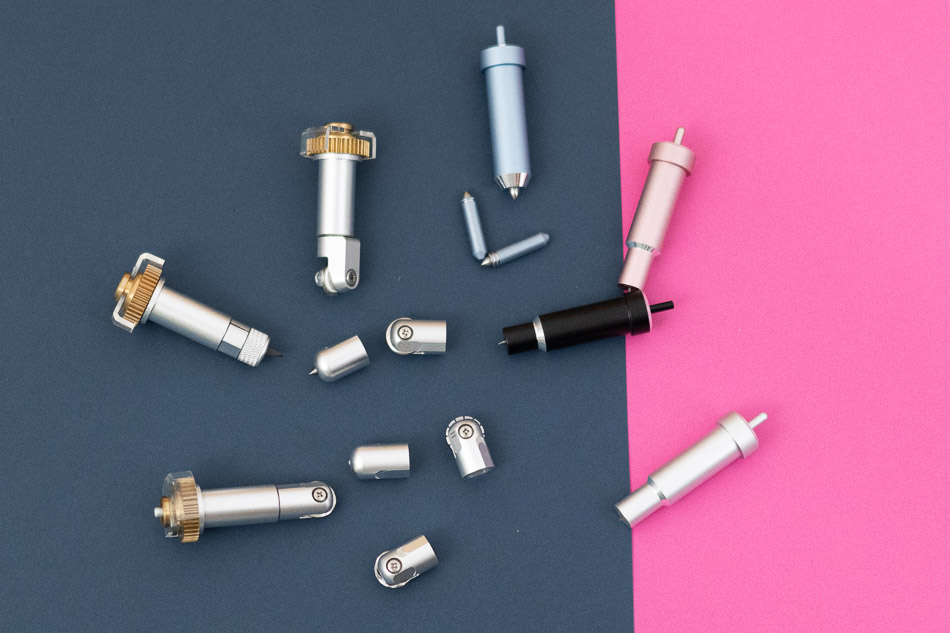
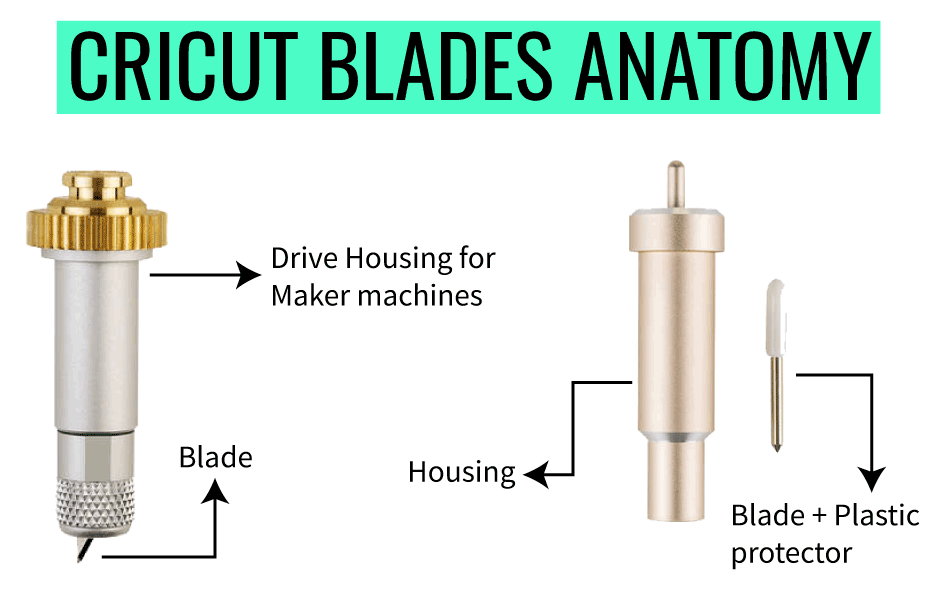
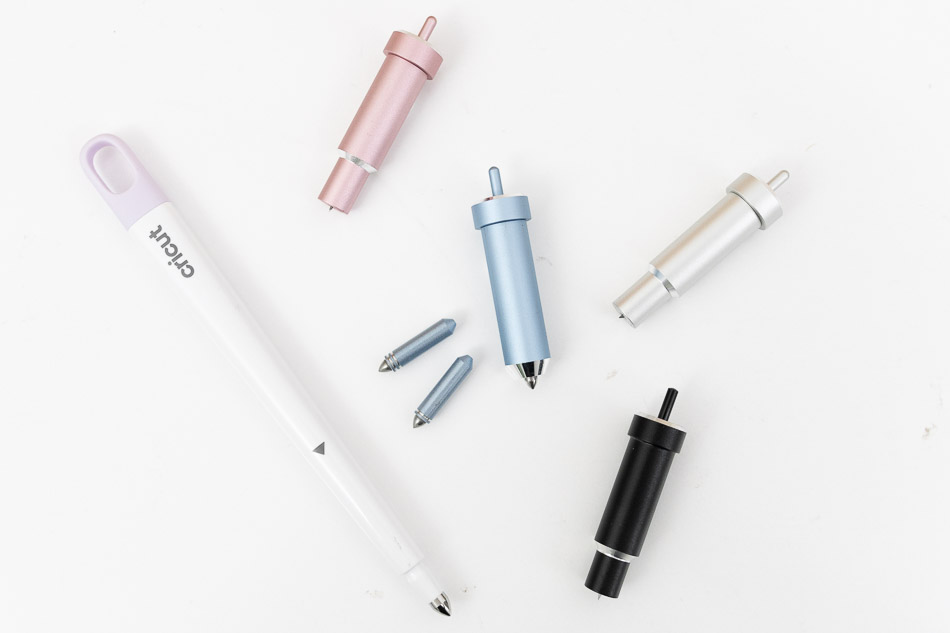
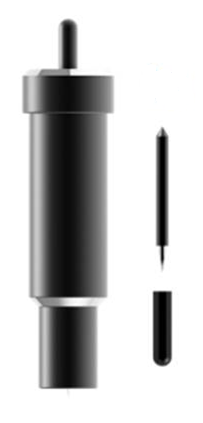
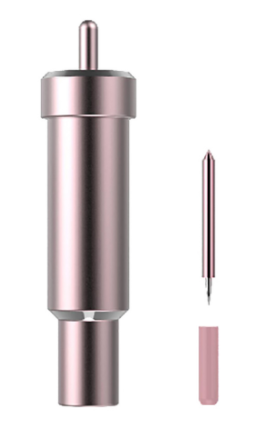
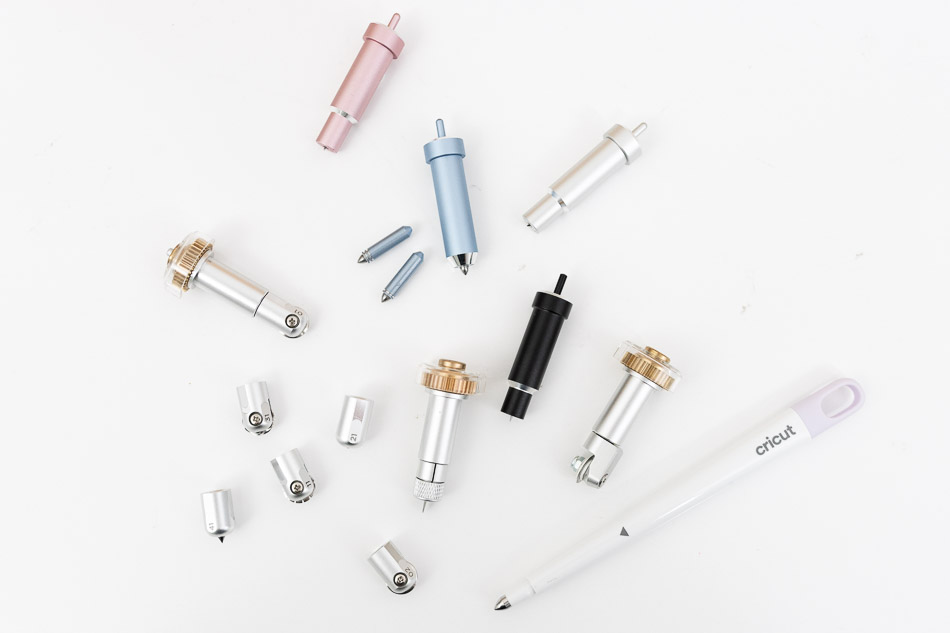
Cricut blades are well-crafted products made with exceptional-quality materials that are easy to handle. They are not only beautiful but also perform exceptionally well. When I first entered the Cricut world, I was pretty confused with some of the terminology I read on the web regarding the blades. If you find yourself in the same spot, here I am to make it easy for you to understand. Besides colors and functionality, when you see a picture of a blade, you see the blade itself and the housing. Let me describe it better here:
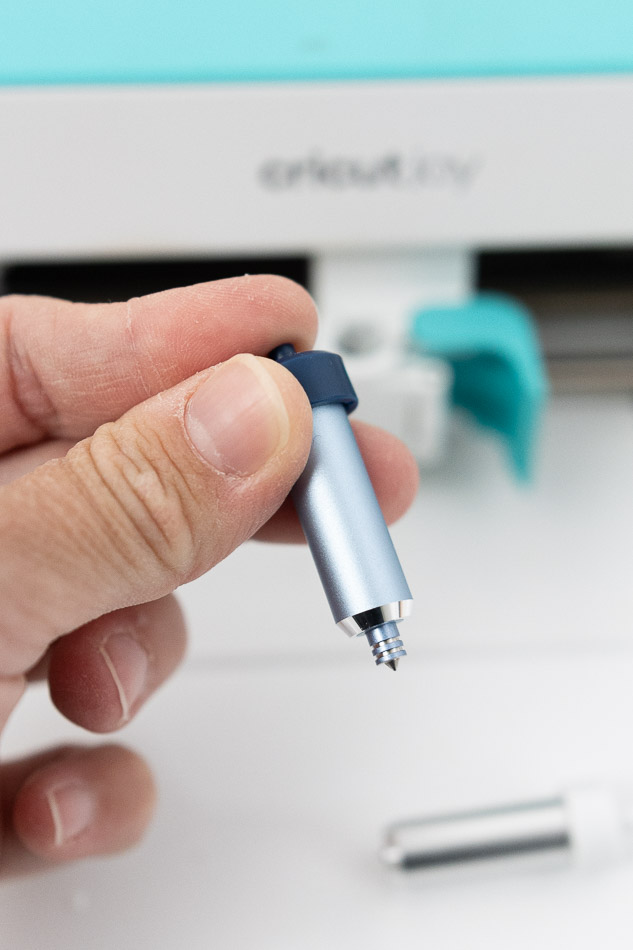
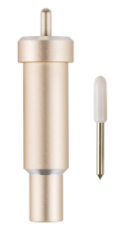
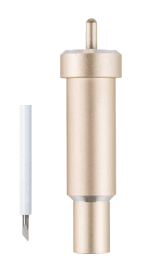
Housing: it’s what holds the blade in place. You don’t need to change the housing when your blade is due for a change.
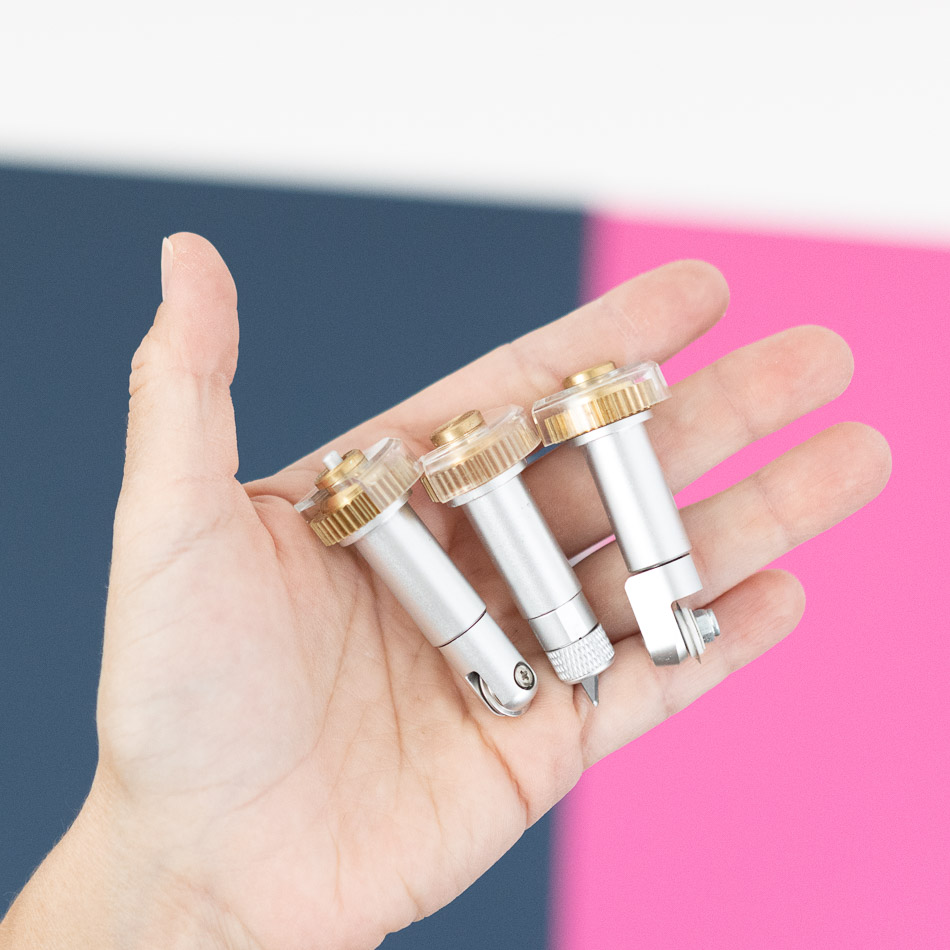
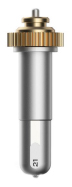
Drive Housing: This type of housing is designed explicitly for Maker machines, and they differ from standard housing blades because they have a golden top gear that the Cricut Adaptive Tool System drives. Drive Housing blades have a plastic cover that should always be left to keep the gears clean.
Blades: They look similar to a small nail and are inserted inside the housings. Blades can be replaced when cuts are not as sharp as they used to be.
Note: The automatic cutoff blade is a single blade with housing.
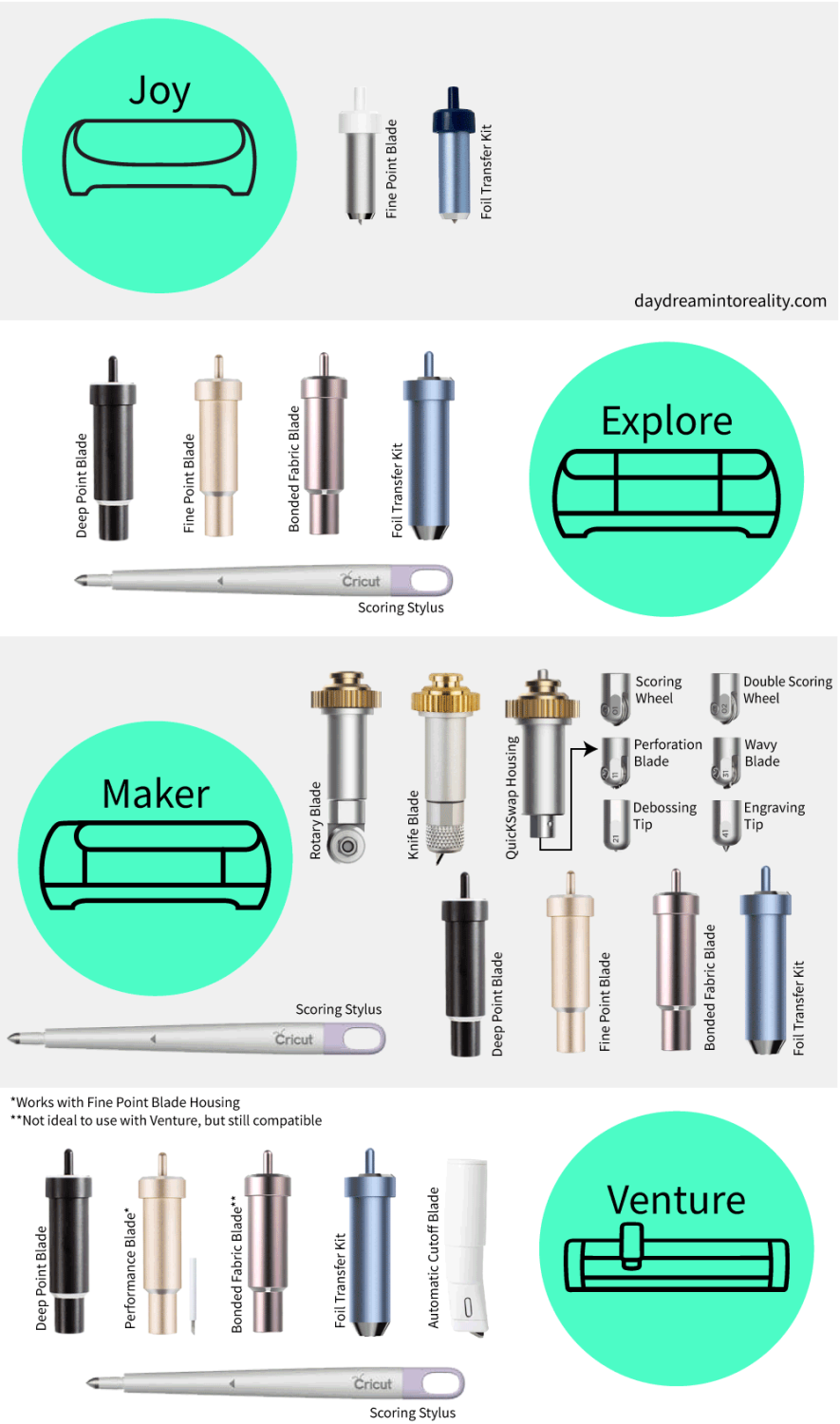
Cricut Blades and Tools – Quick Reference Table and Infographic
We are about to dive into all the blades, the things they can cut, and what machine they are compatible with. To make it extra easy for you, I built a table showing what tools are compatible with your machine. I also made a cool graphic with all the tools and blades you can use with each machine. Take a look at it, and if at any moment you feel lost, come back to it. I update it occasionally to reflect the new tools Cricut develops. Let’s now move to each machine and blade you can use.
Cricut Joy Blades
The Cricut Joy and Cricut Joy Xtra are compatible with the following:
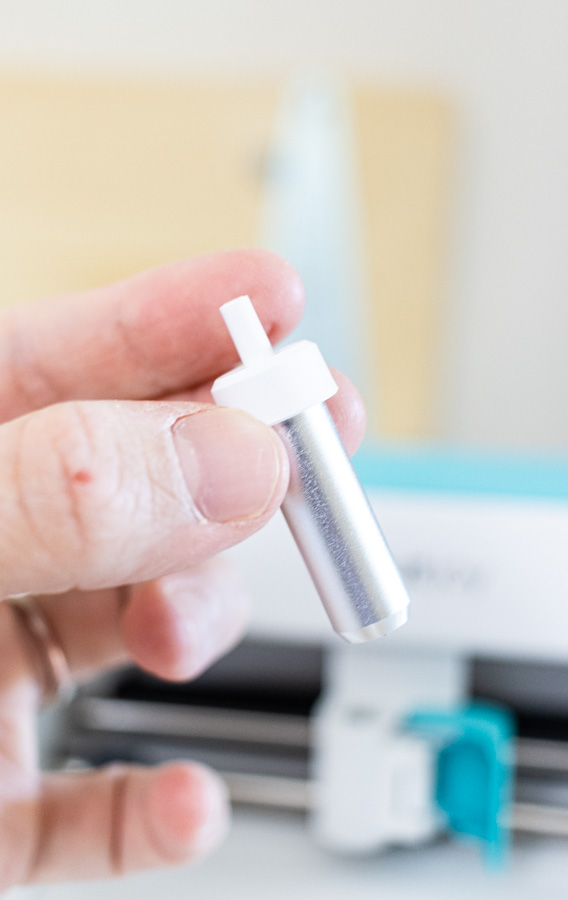
Fine Point Blade
It’s the only blade the Joy machines support; the housing is silver and white, and it comes with your machine. Here are some of the materials you can cut with it:
Smart Iron-On and Vinyl (Without a Cricut Mat) Copy Paper Cardstock Insert Cards with a Card Mat. Writable Vinyl Corrugated Cardboard Glitter Cardstock Foil Poster Board
Foil Transfer Kit
The Foil Transfer Kit allows you to create beautiful and crisp foil effects on your projects. You only have one tip vs. three for Joy machines when compared to bigger machines. Here’s a list of materials you can foil with this tool:
Cardstock Deluxe Paper Pearl Paper Vellum Printable Vinyl Printable Sticker Paper Matboard Poster Board Copy Paper Photo Paper
Cricut Explore Blades
All explore machines work with three different blades and two different crafting tools.
Fine Point Blade Deep Point Blade Bonded Fabric Blade Foil Transfer Kit Scoring Stylus
Fine Point Blade
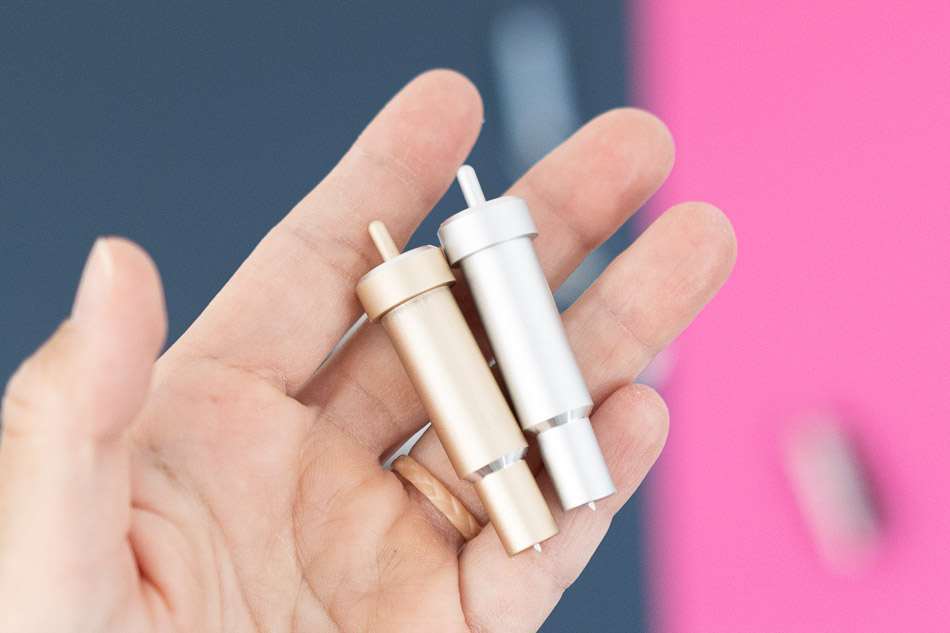
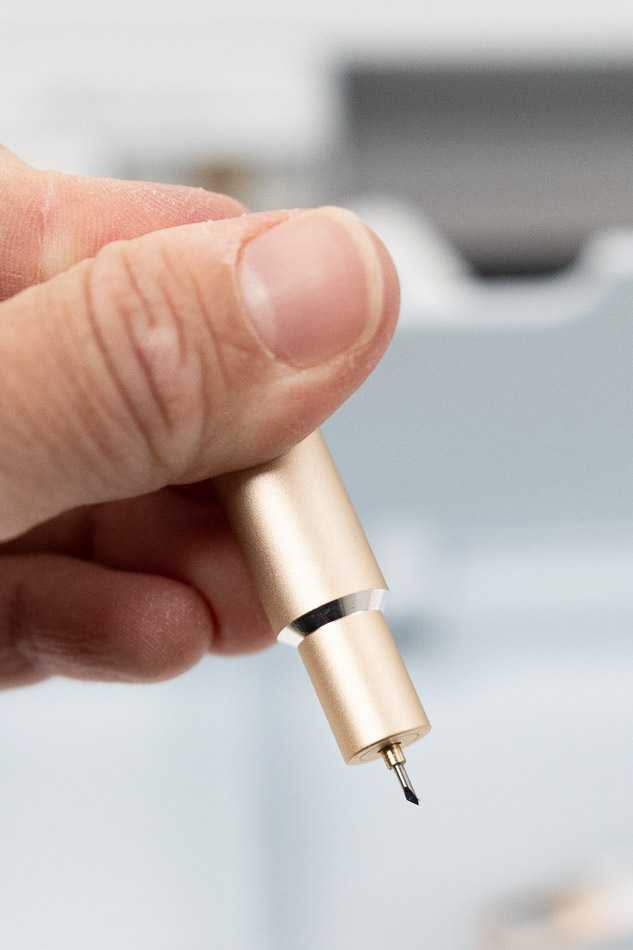
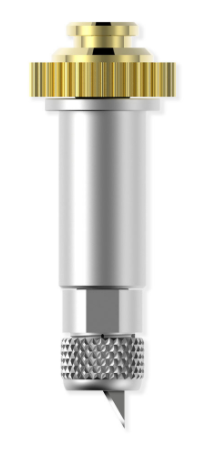
The Fine Point Blade is the most familiar, and it’s included with all machines. It’s made out of German carbide, which is a highly durable and high-quality material most commonly used for cutting tools materials. This blade is perfect for making intricate cuts, and it’s designed to cut medium-weight materials. It comes with a silver housing when you first buy your machine; however, you can also buy a lovely gold housing. Note: Besides color (silver and gold), there’s no difference between the blades. When it comes time to replace this blade, ALWAYS MAKE SURE you purchase the blade with the white cap. The grey cap is for older Cricut machine models. Check Fine Point Blade Price This blade can be used on any mat. However, the pink mat is designed for fabric only. What Materials can I cut with the Fine Point blade?
Printer Paper Vinyl: Glitter vinyl, printable, outdoor, holographic Iron-on or also HTV (Heat transfer vinyl) Cardstock Washi Tape Parchment Paper Vellum Canvas Light Chipboard Faux Leather (Paper Thin)
Deep Point Blade
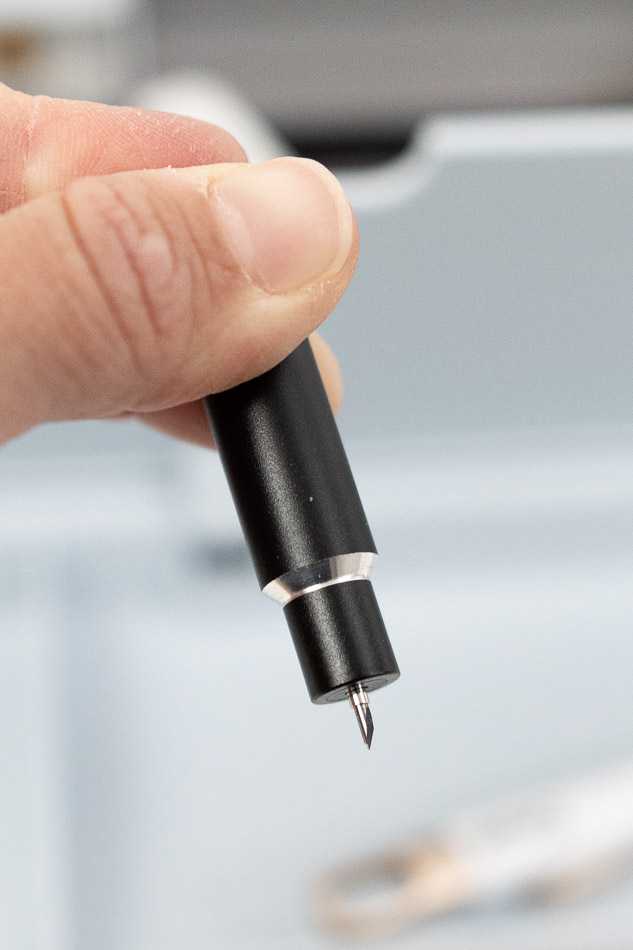
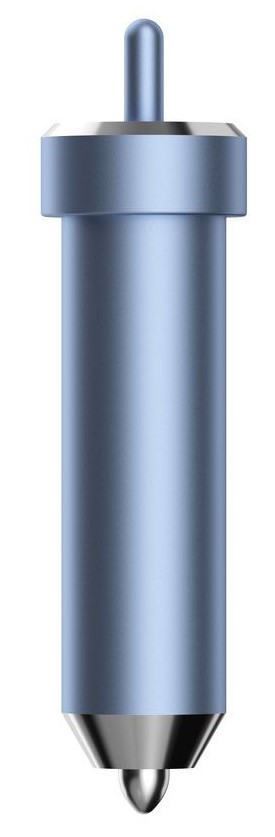
The Deep Point Blade will be your best friend if you need to cut thicker materials. The angle of this blade is so much steeper – 60 degrees compared to 45 degrees for the fine point blade – This allows the blade to penetrate and cut intricate cuts in thick materials. The color of this blade is black and must be used with its respective housing. And by that, I meant that you can’t interchange other blades like Fine Point and Bonded Fabric. Check Deep Point Blade Price What Materials can I cut with the Deep Point blade?
Craft Foam Aluminum Foil Genuine Leather Metallic Leather Magnetic Sheet – 0.6mm Corrugated Paper
Use Deep Point Blade with a StrongGrip mat (purple). Compare the angle differences between Deep Point and Fine Point Blade
Bonded Fabric Blade
The Bonded Fabric Blade is a color-coded version of the Fine Point Blade intended exclusively for fabric use. To achieve optimal results when cutting fabric, refrain from using this blade on paper or vinyl. There’s a big caveat with this blade, though. The fabric you cut needs to be bonded to a backing material. If you are a sewer, you might know what bonded fabric is, but if you are like me and have no prior experience with fabrics, let me explain to you quickly. To stabilize your fabric on the mat, you need to bond it with a particular material (HeatnBond). In the Cricut world, this is called backing. If you don’t bond your fabrics properly, the material will drag and make a mess on your mat. Not fun, right? You may use this blade with the Fabric (pink) or StandardGrip (green). Check Bonded Fabric Blade Price What Materials can I cut with the Bonded Fabric blade? As I just mentioned above, ALL these materials need to be bonded.
Oil Cloth Silk Polyester Denim Felt Burlap Cotton
Foil Transfer Kit
The Foil Transfer Kit is compatible with the Maker and Explore machines and creates crisp and beautiful foil effects on your projects. I enjoy using foil in my projects, but iron-on lacks the intricacy of the Foil Transfer Kit. This kit is 3 tools in 1; Cricut has fine, medium, and bold tips to best suit your project. As far as I know, the foil tips only work with Cricut foil transfer sheets, available in various colors. Here are some materials you can use when working with this tool:
Cardstock Deluxe Paper Pearl Paper Vellum Printable Vinyl Printable Sticker Paper Matboard Poster Board Copy Paper Photo Paper Faux Leather
Use this tool with a mat that will support your base material. For instance, if foiling on vellum, use a LightGrip mat; if foiling on poster board, use a StandardGrip or StrongGrip mat.
Scoring Stylus
The Scoring Stylus tool allows you to create folds on your materials. It’s perfect for constructing boxes and card making. It always goes on the “Clamp A” of your Cricut machines.
Cricut Maker Blades
In addition to the Fine Point Blade, Deep Point Blade, Bonded Fabric Blade, Foil Transfer Kit, and Scoring Stylus, the Maker machines support all the blades and tools mentioned below.
Rotary Blade
The Rotary Blade is powered by the Adaptive Tool System, allowing it to cut through nearly any type of fabric. The best part is that you don’t need any additional backing material to stabilize the fabric on the mat, which should make you happy! The Drive Housing for this blade isn’t interchangeable with other blades. For you to change the blade itself, you need a particular kit. This blade and the pink mat come with the Cricut Maker but not the Maker 3, which is quite a bummer because it’s 40 USD or so to buy the other things separately. Although this blade is very cool and potent, it does have a slight restriction. The image or project size you are trying to cut should be at least 3/4 of an inch (19 mm). Cutting smaller projects will result in shortening the blade’s life. Check the Rotary Blade What Materials can I cut with the Rotary Fabric blade?
Bamboo Fabric Bengaline Canvas Cashmere Chiffon Corduroy Cotton Denim Felt Fleece Gauze Silk Lycra Microfiber Nylon
Knife blade
I believe this blade is what makes the Makers total-making machines. The projects you can cut with this baby are just unique. You can create wood signs for your home, boxes, extremely sturdy cake toppers, and more. You should use the StrongGrip Mat to use this blade. If cutting extra thick materials, like wood, it’s recommended to add extra grip by using painter’s tape on the edges of your project so it stays secure on the mat. The Drive Housing for this blade isn’t interchangeable with other blades. Check Knife Blade Price What Materials can I cut with the Knife blade?
Tooling Leather Balsa – 1/16 in & 3/32 in Basswood – 1/16 in & Basswood – 1/32 in Heavy Chipboard – 2.0mm Matboard 4 Ply
QuickSwap Tips and Blades
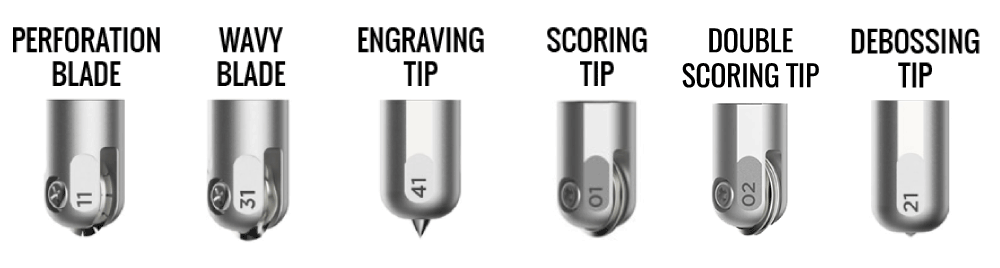
Unlike the Rotary and Knife blades that have their respective Housing, The QuickSwap system allows you to use six different tools (two blades and four tips)
Perforation Blade Wavy Blade Engraving Tip Scoring Tip Double Scoring Tip Debossing Tip
One of the benefits of the QuickSwap system is the ability to use all the tools with the same housing, resulting in cost savings. Let’s see a little bit more about all of these tools:
Perforation Blade
This particular blade will allow you to create projects with a tear finish. With this tool, a new world of possibilities has opened. You can create coupons, raffle tickets, etc.! Some of the materials you’ll be able to use with this blade are:
Corrugated Cardboard Metallic Poster Board Cardstock Glitter Cardstock Heavy Cardstock Felt Craft Foam Glitter Craft Foam Iron-On Faux Leather (Paper Thin) Tooling Leather – 2-3 oz. (0.8 mm) Vellum Plastic Acetate Foil Acetate
Learn how to use the Perforation Blade. Have an Explore or Joy? Check out my perforation blade alternative.
Wavy Blade
This tool creates wavy effects on your final cuts instead of cutting on straight lines like the Rotary or Fine Point Blade. Getting curved lines in Design Space is quite complicated, so this tool will be helpful if you like these effects. Gift Tags, banners, cards, envelopes, and unique vinyl decals are some of the projects that will benefit from this tool. Oh, did I mention that you can also cut fabric with it? Some of the materials you can cut with this blade:
Heavy Cardstock Corrugated Cardboard Foil Poster Board Kraft Board Metallic Poster Board Poster Board Glitter Cardstock Cotton Denim Flannel Fleece Fusible Fleece
Engraving Tip
The Engraving Tip is something that many crafters have been waiting for! With this tool, you’ll be able to engrave various materials. Do you have a dog? What about making a dog tag!… You can create monograms on aluminum sheets or anodized aluminum to reveal the silver beneath. Here are some of the materials you’ll be able to use with this blade:
Anodized Aluminum Brass Bronze Stainless Steel Faux Leather (Paper Thin) Garment Leather – 2-3 oz. (0.8 mm) Genuine Leather Tooling Leather Vellum Acetate Foil Acetate
Debossing Tip
This tip will push the material in and create beautiful and detailed designs. The debossing will bring your projects to a new level because of the detail you can add to your designs. Imagine debossing a beautiful gift box with flowers, hearts, stars, etc.! You can also make 3D Cards and monograms! Here’s a list of some of the materials you’ll be able to use with this tool:
Foil Poster Board Heavy Chipboard – 2.0 mm Kraft Board Light Chipboard – 0.37 mm Matboard 4 Ply Metallic Poster Board Poster Board Foil Acetate Vellum Faux Leather (Paper Thin) Genuine Leather Tooling Leather Craft Foam Glitter Cardstock Heavy Cardstock Balsa – 1/16″ (1.6 mm) Balsa – 3/32″ (2.4 mm)
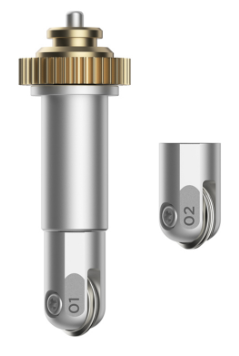
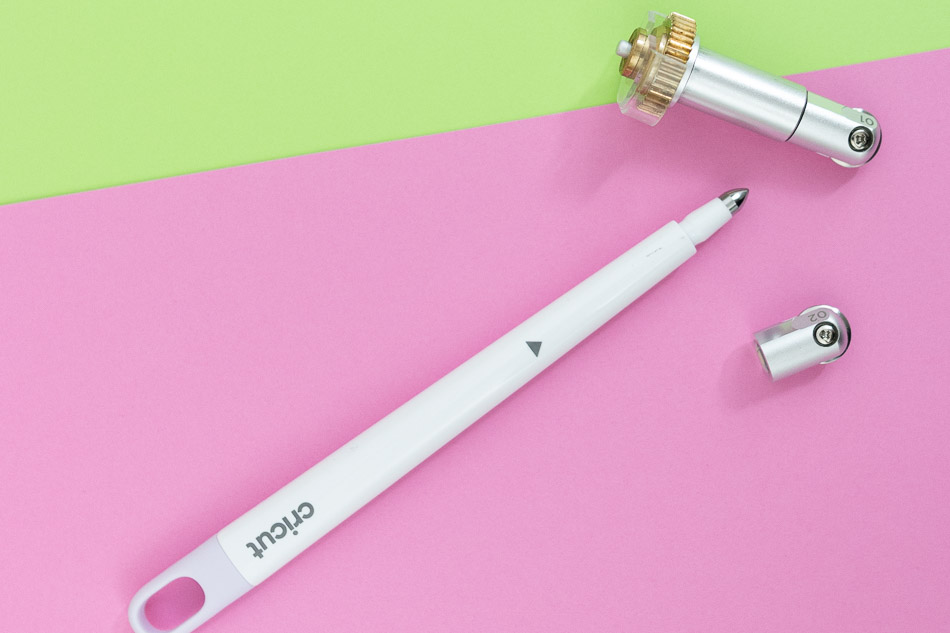
Scoring Wheel and Double Scoring Wheel
The Scoring Wheel is a tool that allows you to create beautiful, edgy, and crispy folds on your materials. Cricut has designed single and double tips to give you the best results. Depending on the material you select, Design Space will suggest you the tip you need. Single Wheel 01: It is ideal for light materials such as print paper, regular cardstock, etc. Double Wheel 02: It is ideal for heavy and coated materials such as chipboard, glitter cardstock, metallic poster board, etc. Read my tutorial to learn how to use the Scoring Wheel. Here are some of the materials you can use with this tool:
Corrugated Cardboard Damask Chipboard Flat Cardboard Foil Kraft Board Heavy Chipboard – 2.0 mm Kraft Board Cardstock Foil Acetate Plastic Packaging Copy Paper Corrugated Paper
Check Quick Swap Tools Price If you’re not ready to invest in a Scoring Wheel, you can use a Stylus to score lines. Read my comparison of these two tools here.
Cricut Venture Blades & Tools
The Venture is made for professional and business settings; therefore, some adjustments had to be made to maximize performance. Venture machines are designed to work with the Deep Point Blade, Scoring Stylus, and Foil Transfer Kit. While it is possible to fit Fine Point and Bonded Fabric Blades onto the machine, it is not recommended as their blades have a short lifespan. If you’re in a pinch and cannot find the Performance Blade for some reason, you can use it for small cuts, but I wouldn’t use it in a daily business operation setting.
Performance Blade
The Performance Blade is a long-lasting German carbide steel blade designed specifically for intricate cuts using the Cricut Venture machine. It can be used with either the gold Premium Fine Point Blade Housing or the silver Fine Point Blade Housing. Some of the materials you can cut with this blade are:
Cardstock (for intricate cuts) Copy Paper Craft Foam Deluxe Paper Iron-On Foil Poster Board Heavy Cardstock Photo Paper Poster Board
Yes, you can also cut fabric using the Performance Blade. However, I would recommend getting separate housing for either the Fine Point or Bonded Fabric Blade. It’s always a good idea to have a distinct blade for fabric. It must be bonded if you want to cut fabric with this blade. You can use it to cut the following:
Denim Felt Polyester
Automatic Cutoff Blade
The Cutoff tool is the only blade that is fused with the housing, and it goes on the “Clamp A” of your machine. If your primary business involves working with Smart Vinyl, then the blade I’m referring to is quite useful in separating your cuts from the roll. However, if you mainly work with paper, then there may not be much need for this blade.
Discontinued Blades
The blades listed below have now been discontinued. That’s why I will not be mentioning them in this post.
Standard Blade Housing Deep Cut Blade & Housing Scoring Tip & Housing Cricut Cake Blade & Housing
Are Cricut Blades Interchangeable?
The Fine Point, Bonded Fabric, and Performance Blade are all compatible with the same housing. Additionally, the QuickSwap tips and blades can use the same housing, that means, if you already own one, you only need to purchase the desired tip or blade going forward. The remaining tools (Deep Point, Rotary, Knife, Foil Kit) can only be used with their respective housing. I mentioned this in every blade description. But if you were skimming this post, here’s the quick answer!
Where Can I buy Cricut Blades?
All Cricut blades and tips are available at any craft store like Michael’s and Joann’s. Even Walmart carries them! I like to get them on the Official Cricut Website. I have a baby and no car, so online shopping is the most convenient for me! Check out all of the blades prices here
How long does the Cricut Blade Last?
This is not a size fits all kind of question. Although Cricut blades are made to last a reasonable amount of time, there comes a time when they need to be replaced. The blade’s life depends on the kind of materials you are working with, how often you use them, and, of course, how you care for them. For instance, paper and cardstock are more demanding on the blades than a much smoother material like vinyl. So, if paper is your jam, you’ll go through blades more often. Blades that cut through thick materials, like the Deep Point blade and, especially, the Knife blade, need to be replaced more often because of the pressure the blade needs to execute to get smooth and clean cuts. You’ll know you have to replace the blades when your cuts are dull and not as sharp as they used to be.
Should I Sharpen Cricut Blades
While researching and learning about the Cricut blades, I found out a couple of tutorials that use Aluminum Foil. You simply make a little ball with aluminum foil, press the top of the housing so you can see the tip of the blade and poke the ball for about a minute or so. I got a couple of comments on my post saying this is not advisable. Although Cricut materials are expensive, pricing for replacing blades is not that bad considering all the lifespan they have. You can go almost a year with the same blade if you use your machine a couple of times a week! I believe you should save money on looking for the best deals on vinyl and paper, but never on the core of the tool that makes your project beautiful.
How to replace Cricut Blades?
Cricut blades are very easy to change. Just be careful because they are very sharp, and I don’t want you to get cut. For blades and a tools with a little plunge at the top; just press it, remove the blade or tip with your hands, and insert the new blade with the housing upside down. Other blades like Rotary and Knife are slightly more tricky. So, the best way for you to learn how to change the blades is by watching! Check out these YouTube videos and become an expert in changing the blades. Note: I will be creating my videos soon, so subscribe to my channel and press the bell so you get notified! It’s also a great way to support me 🙂
Learn How to replace Rotary Blade
Learn How to replace the Knife Blade
How to Care for my Cricut Blades
Caring for your Cricut blades will increase their life. Blades and housings are quite an investment, so ensure you are always doing your best to care for them. Here are a couple of tips for you to take care of your precious tools. The best way to care for your blades is to use them with suitable materials. If you don’t have a deep-point blade, it can be tempting to try to cut something thicker with a fine-point blade. However, not only your project won’t be properly cut, but you will also add extra wear and tear to the blade. Make sure to keep the plastic cover for Drive Housing. This cover protects and keeps the housing gears clean. When you remove the cover, you are exposing the blade & housing to small particles like hair and dust. Put them away when they are not in use.
How to Store Your Cricut Blades
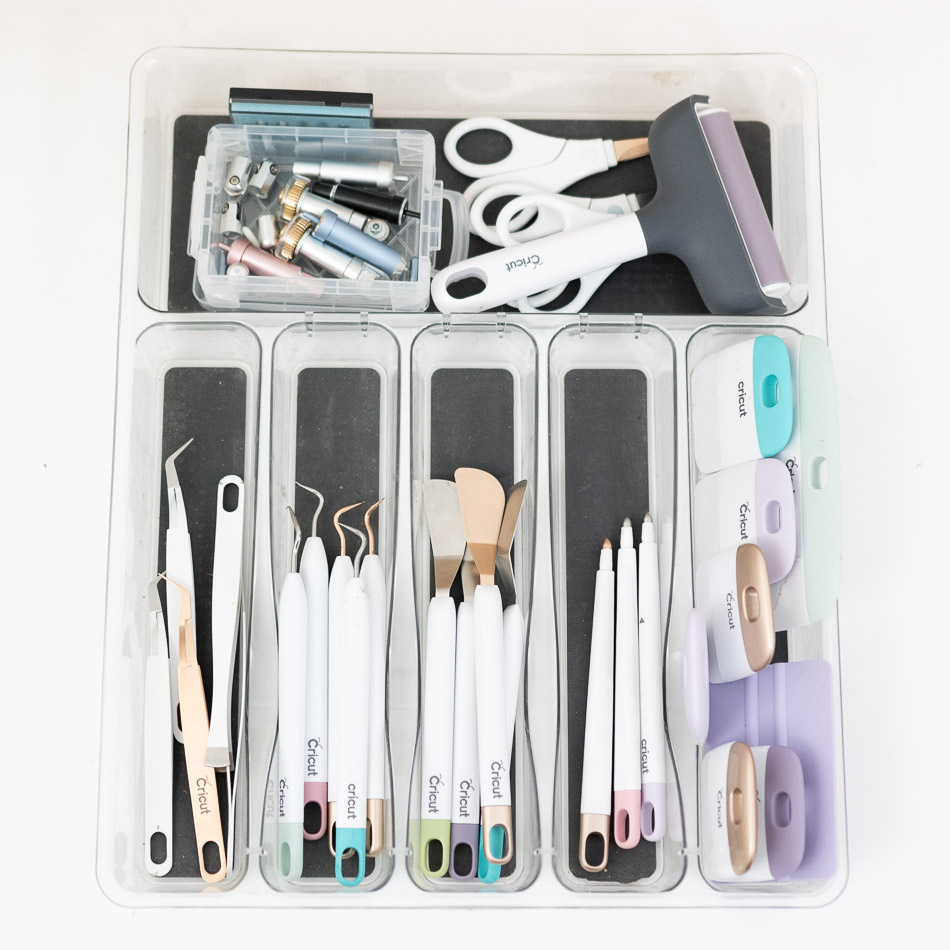
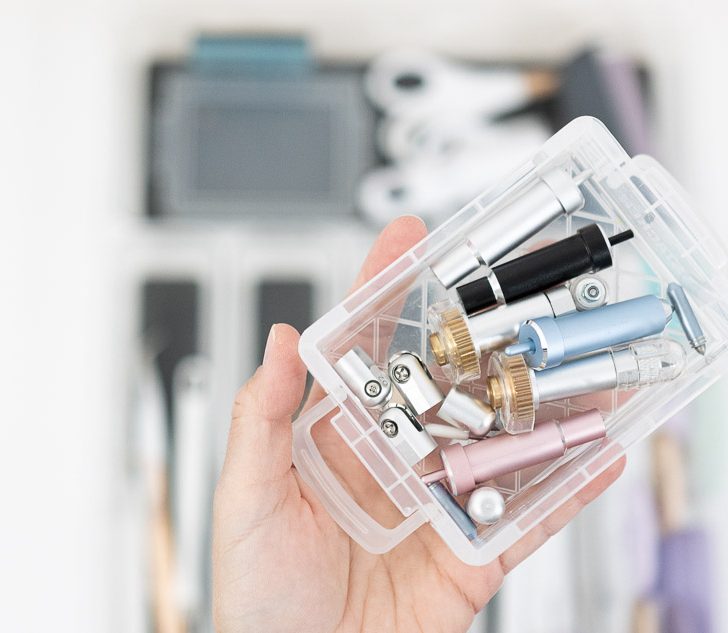
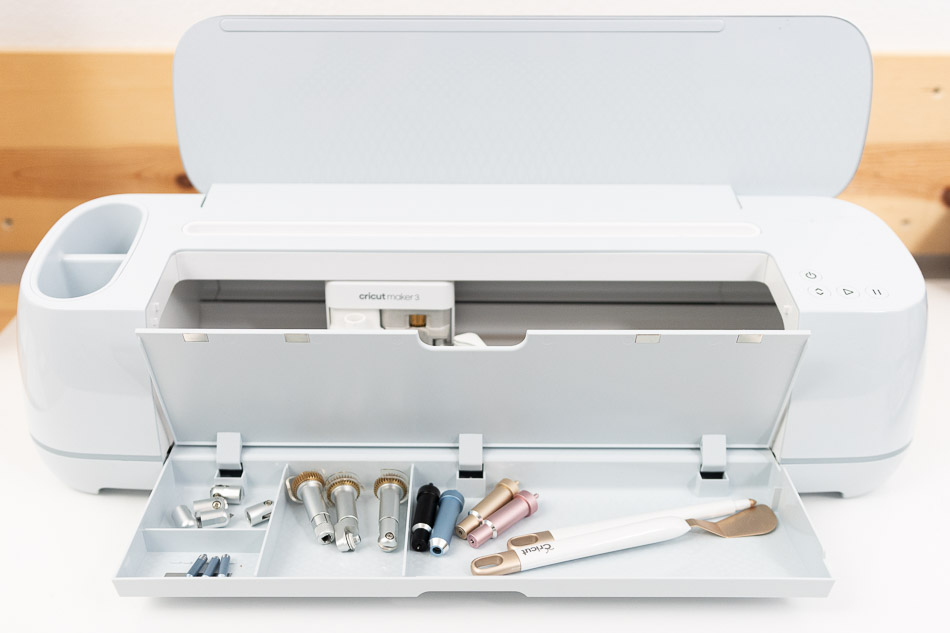
My favorite way to store my blades used to be the machine itself, then as the tools kept increasing I got a fancy silverware divider and I use it to keep all my tools organized. For my blades and tips I have a small plastic container where I keep them safe. If you just have a handfulf of tools, the Compartments inside the machines are specifically designed to hold your blades. For the replacement blades, there’s a metallic magnet that will keep them in place at all times. Cricut also has this blade organizer, but quite frankly I think you should use that money to get mats, blades, or other cool materials. However you decide to store them, make sure to put them way far away from your children’s – or anyone else that doesn’t know that’s a blade – reach.
Frequent Cricut Blades Problems
There might be a point where you’ll feel frustrated about your blades. Maybe your blades are not cutting well, dragging the materials, cutting too deep, or simply not cutting at all! Most of these problems can be solved by checking out your settings, especially if you modified them in the past to cut a custom material. Maybe your mats are not stabilizing the material correctly, and you need to change them, or perhaps it’s time to replace the blade. If these little things don’t solve your problems, check out this post from the Cricut Website for this particular problem. They walk you through everything you need to know!
Don’t leave yet!
Do you know it takes me over 25 hours to complete a single Cricut article? I know it’s wild, but I want to make sure you understand everything!I would appreciate your support on Instagram , Pinterest , and YouTube as I try to grow my audience and continue producing great content! Oh! Just so you know, I also have a library full of free SVG files and Printables for all my subscribers, a.k.a. Daydreamers. You can see a preview right here or get access by filling out this form.